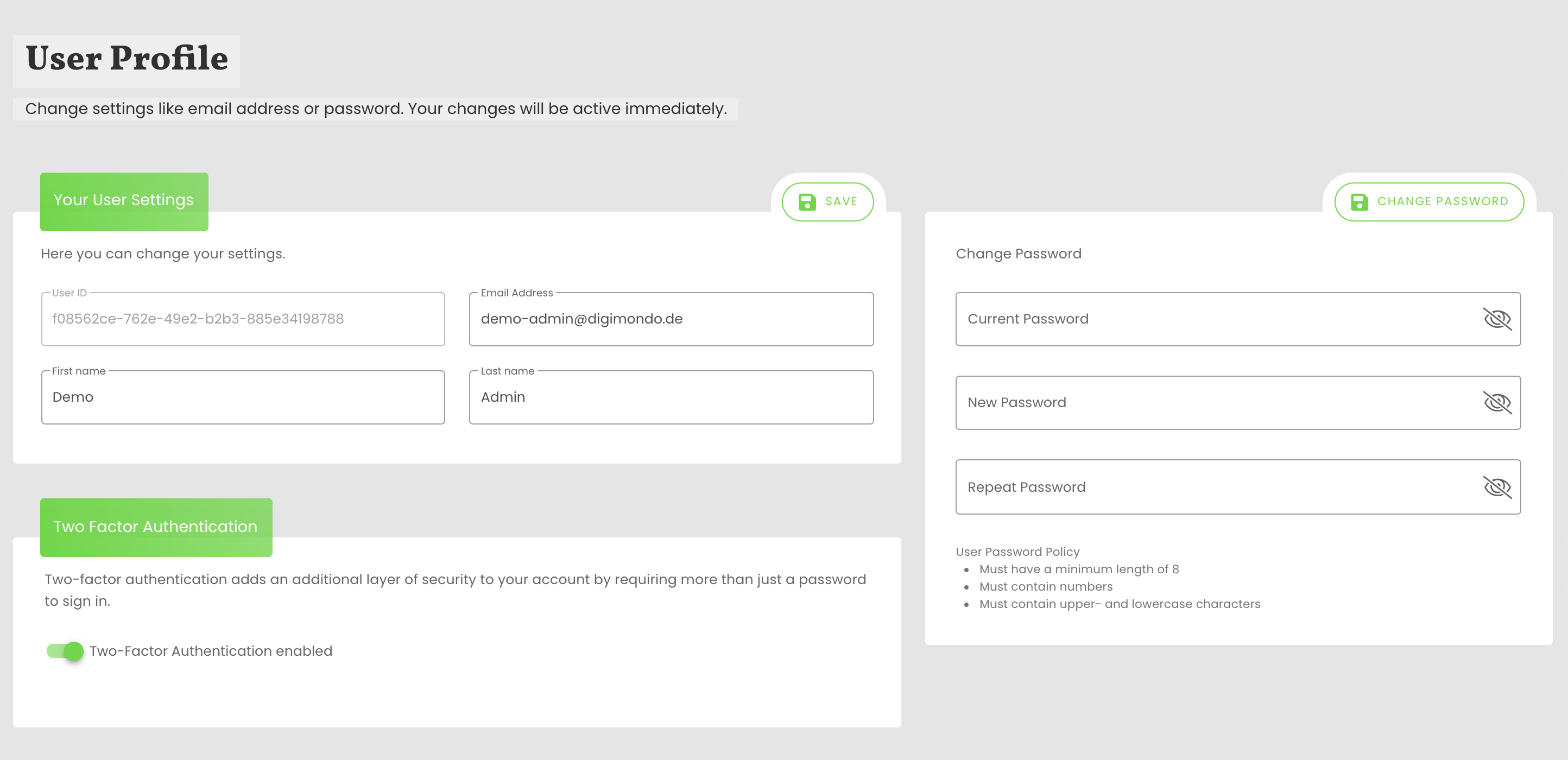
With the user settings, you can customize your account. In comparison to the selection of the language and color scheme with the “gearwheel”-button on the top right, these settings are permanently saved and independent from the user’s local browser.
You can change your first and last name as well as update your email address. You can also change your password and set up two-factor-authentication.
ATTENTION: The email-address is used for logging in and resetting your password - so ensure that this is always a valid address you have access to.
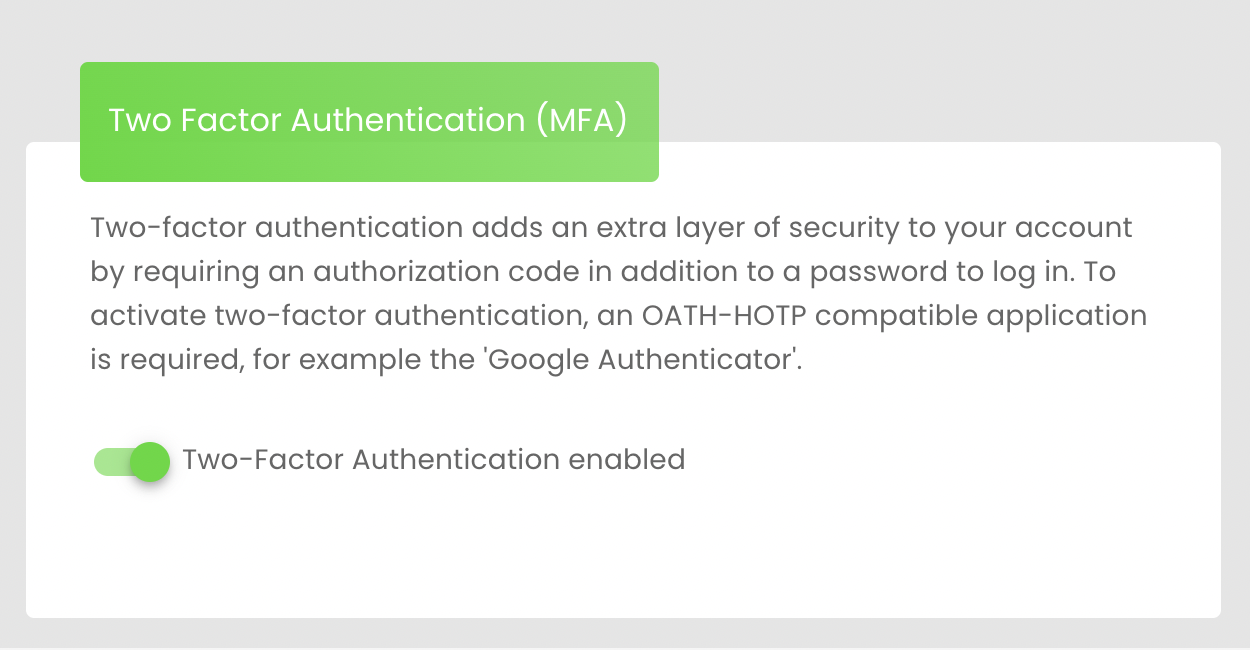
Activate Two-Factor-Authentication
When you activate the Two-Factor-Authentication with the switch, a new popup appears to scan the QR-code with your authenticator-app and type in the 6-digit-code to confirm the process. We recommend to use the Google Authenticator App for your smartphone (Link App Store / Link Play Store). Alternatively, you can also use the Microsoft Authenticator app. Once the initial authentication is successful, 10 more recovery codes will appear in the next pop-up window. You should keep these in a safe place and they can be used once in case you do not have access to the Authenticator app.
IMPORTANT: Never share your recovery codes and keep them in a secured place. In combination with your password, others can log in to your account with the recovery codes.
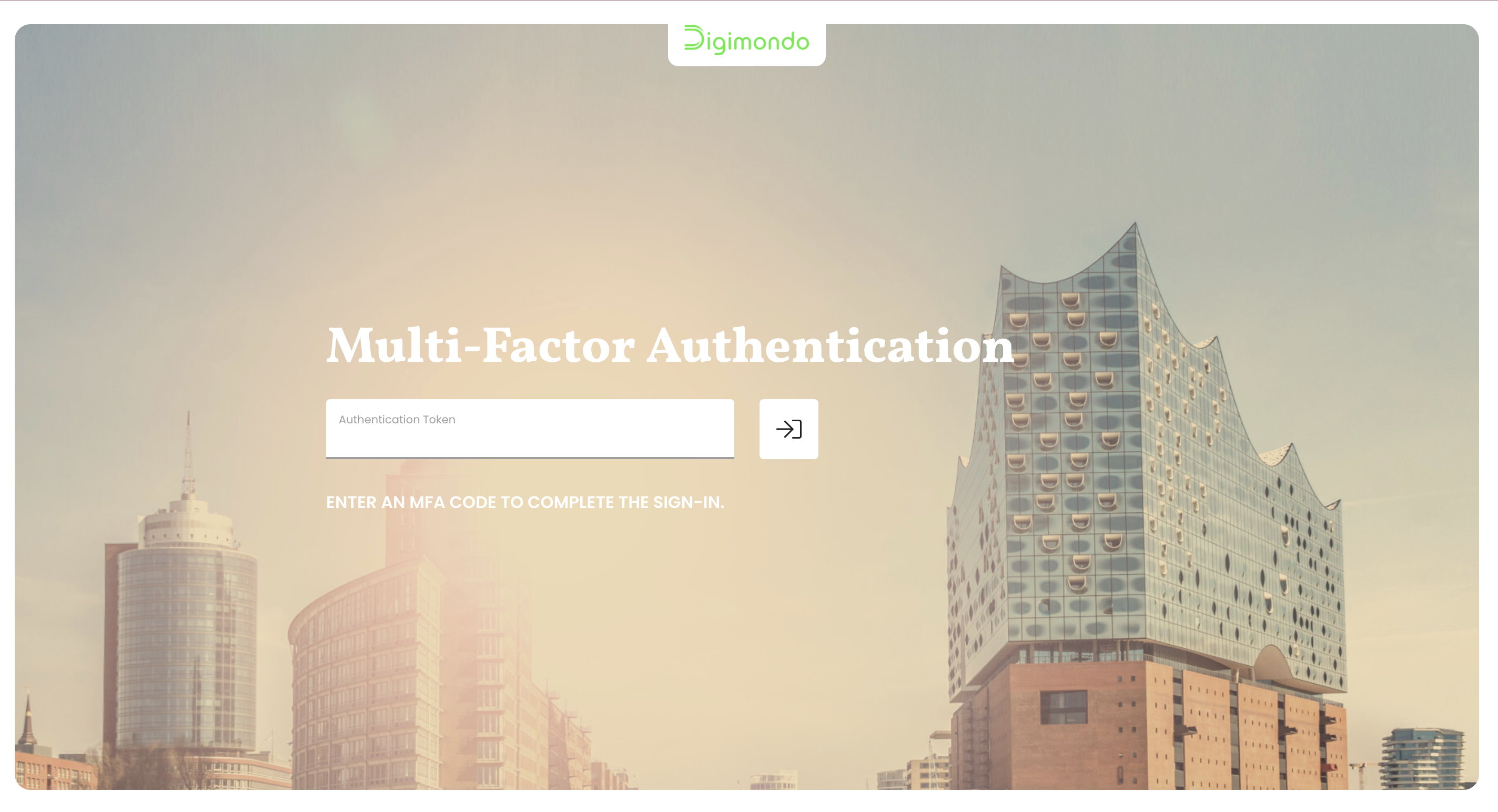
From now on, you will be asked for the 6-digit authentication code in addition to your username and password when logging in. The 6-digit code is also required to deactivate two-factor authentication.