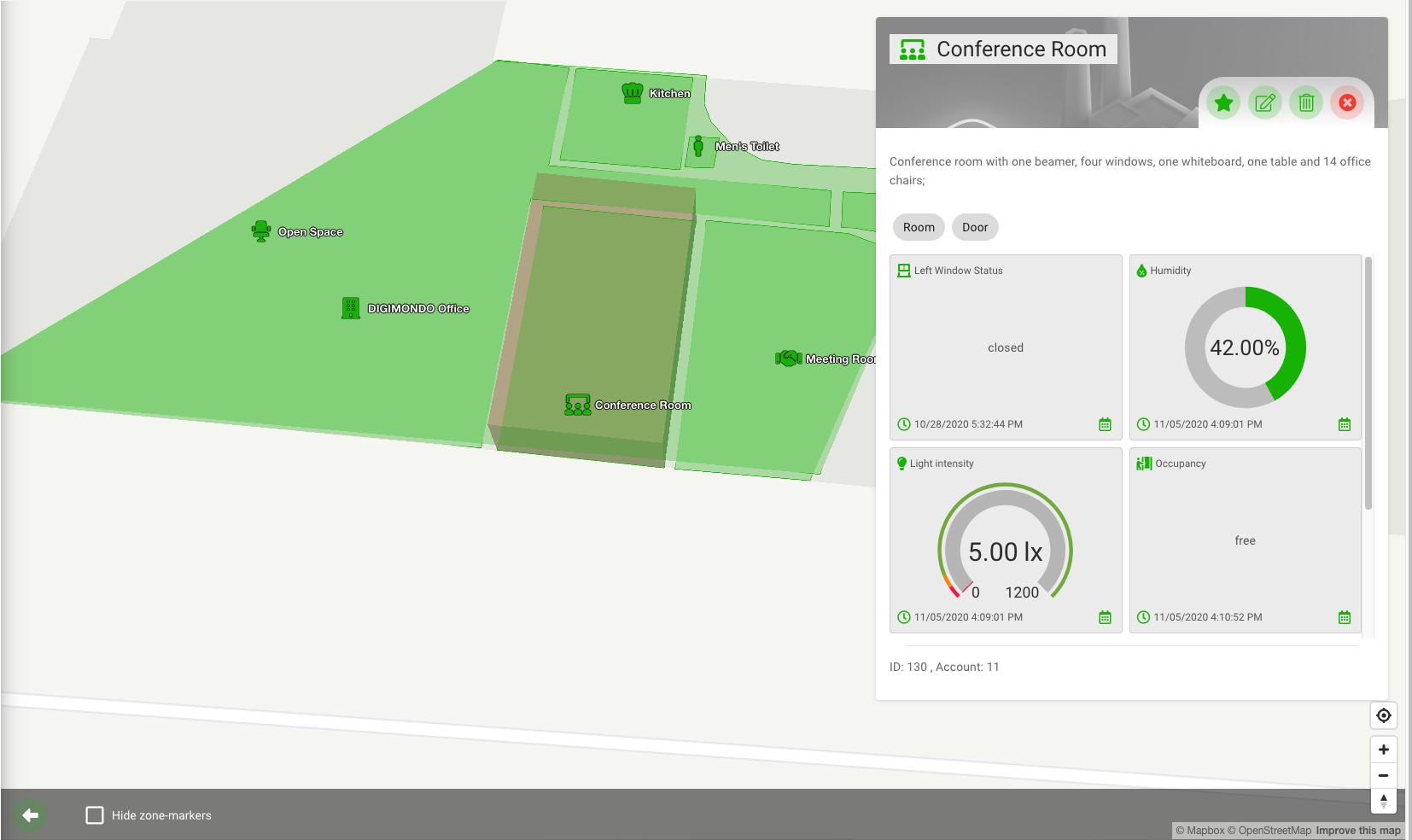
If you select a digital twin and click on the “Load map” button, you can see the twin and its sub-twin on a map. Like in other applications like Google maps, you can move the visible section of the map by clicking and dragging.
If you click on a digital twin, the dashboard with the states of the twin opens up. You can edit states directly here.
Footer Bar
In the footer of the map view, some settings can be made for the current map.
Go Back Button
With clicking on “Go Back”-Button (), it is possible to go back to detail view of the twin.
Floors
This button () is only visible when the indoor mode is activated. Here you can easily switch between the floors.
Floor Switcher
Clicking on the button with the layer symbol () opens the layer switcher. Here it is possible to (de)activate the indoor mode.
If one or more digital twins within the current twin hierarchy have been assigned the twin type “Building”, it is possible here to switch between these buildings. Likewise, it is possible to switch between floors (within these buildings) here.
Maps settings
Clicking on the button with the gear symbol () opens the map settings. Here it is possible to (de)activate the indoor mode.
You can save these settings by activating the button in front of “Save settings”. The used settings will be persisted in the browser and applied automatically the next time you open the map.
Data State selection
To be able to compare the Data States of several twins with each other, it is helpful to be able to select a Data State, which is then displayed highlighted on the map for all twins - if available. For this, it is necessary for the data states to have a visualisation as a “Gauge” or “Boolean”. You define the color with which the Data States are displayed on the map in each Data State itself, e.g. in the visualization of a Data State value as a dial gauge. You can save these settings by activating the button in front of “Save settings”.
Maximum age of Data States
Data States of different twins often also have different ages, which the Data States are triggered event-based. In some cases this leads to the fact that the values of these Data States are no longer comparable with each other. For this there is the possibility to select the maximum age of these Data States. Values that are older than the selected age will be grayed out.
If a selected Data State has no value at all, for example because this Data State is not available in a digital twin, the polygon can also be hidden here.