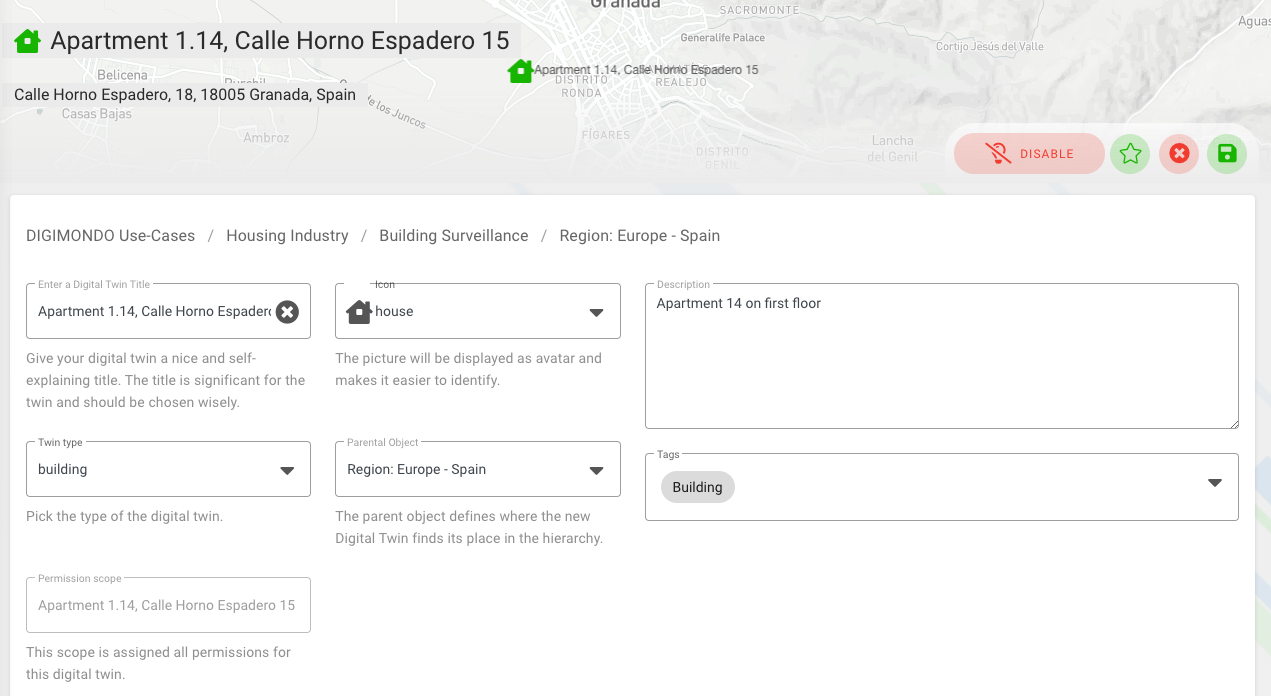
- Digital twin title: displayed name of the digital twin
- Icon: the displayed icon for the digital twin
- Description: providing details about this digital twin
- Twin type: Select the corresponding type of digital twin (e.g. “building”, “zone”) to activate type-specific functionalities and text fields; e.g. the access management for “building” twins (requires additional modules).
-
Default (default): Can be used for structuring your Digital Twins
-
Building (building): Can be used for structuring your Digital Twins
-
Sensor (sensor): Can be used for structuring your Digital Twins
-
Room (room): Can be used for structuring your Digital Twins
-
Door (door): Can be used for structuring your Digital Twins
-
Floor/Level (floor): With this Twin type, you are able to add a Floor Plan to your map.
-
- Parent object: Define to which parent the digital twin belongs; e.g. to move a digital twin between different organizations.
- Tags: Apply tags for your individual needs, e.g. to organize the status during configuration (“ready”, “work in progress”) or to group digital twins by different criteria. Tags are displayed under the description.
- Users and responsibilities: You can assign users from your account as responsible employees and technicians for a digital twin. Assigning users does not have any effect on the twin. It is solely information for you and your account’s users.
- Attachments: Upload files (e.g. PDFs, images, technical documents, etc.) with up to 10 MB as attachments for each twin to keep all relevant information in one place.
- Custom properties: You can add your own attributes (e.g. “serial number” or “address” etc.) and their value to enrich the digital twin’s information with individual properties. Click on the “+"-button to add as many fields as needed.
To save changes in this section, click on the “Save”-button in the upper right corner. To cancel these changes, use the “Cancel”-button.
With the “disable”-button on the top, you can switch off a digital twin. By this, the digital twin will be invisible to all other users except for administrating users with the rule “all.manage”. Besides, the states will store the last received value and will not update anymore. Rules in the rule editor will not be re-evaluated or trigger actions anymore. Disabling a digital twin is the way to make it disappear in niotix. Because a digital twin has a lot of dependencies with other twins, devices, and accounts, it is not possible to directly delete a digital twin. By this, it is ensured for all users that no inconsistencies might appear.