CSV-Export for single virtual devices
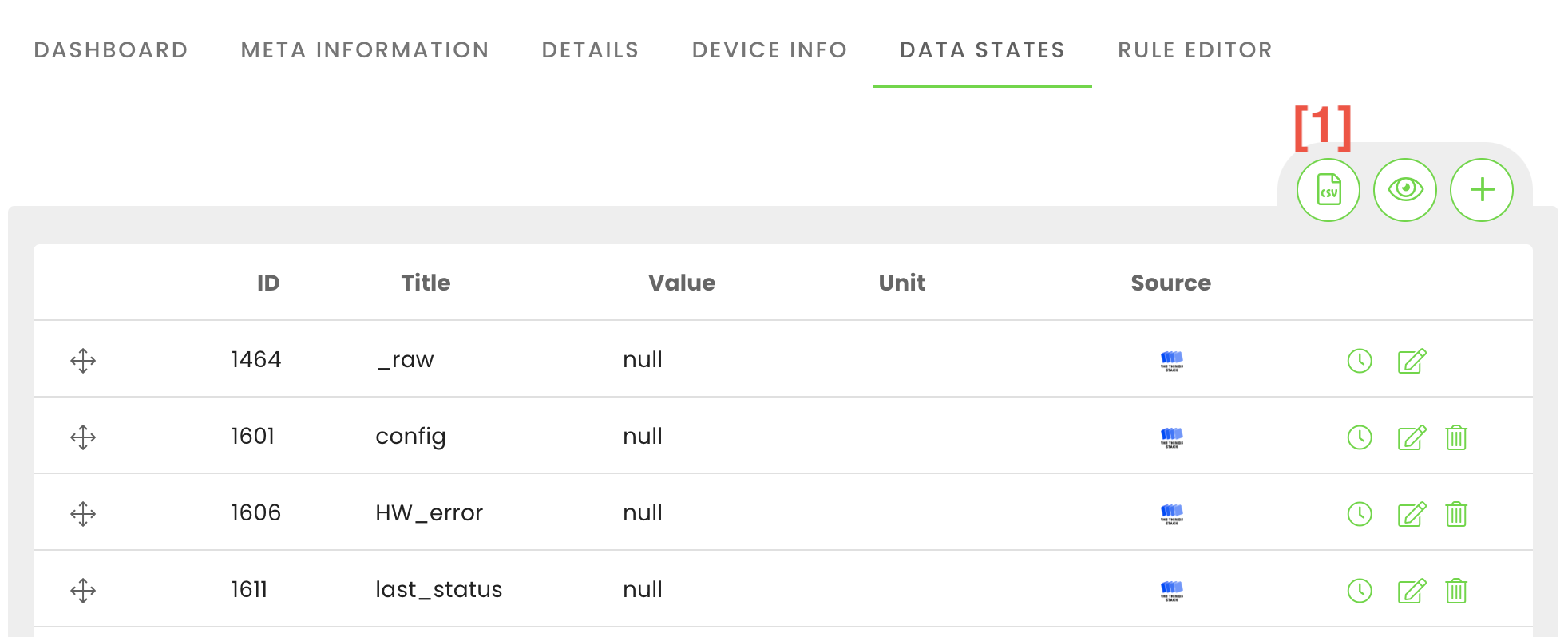
You can export incoming data from virtual devices as CSV-file. To do this easily, select a device, then click on data states. By clicking the CSV-icon you can configure the export [1].
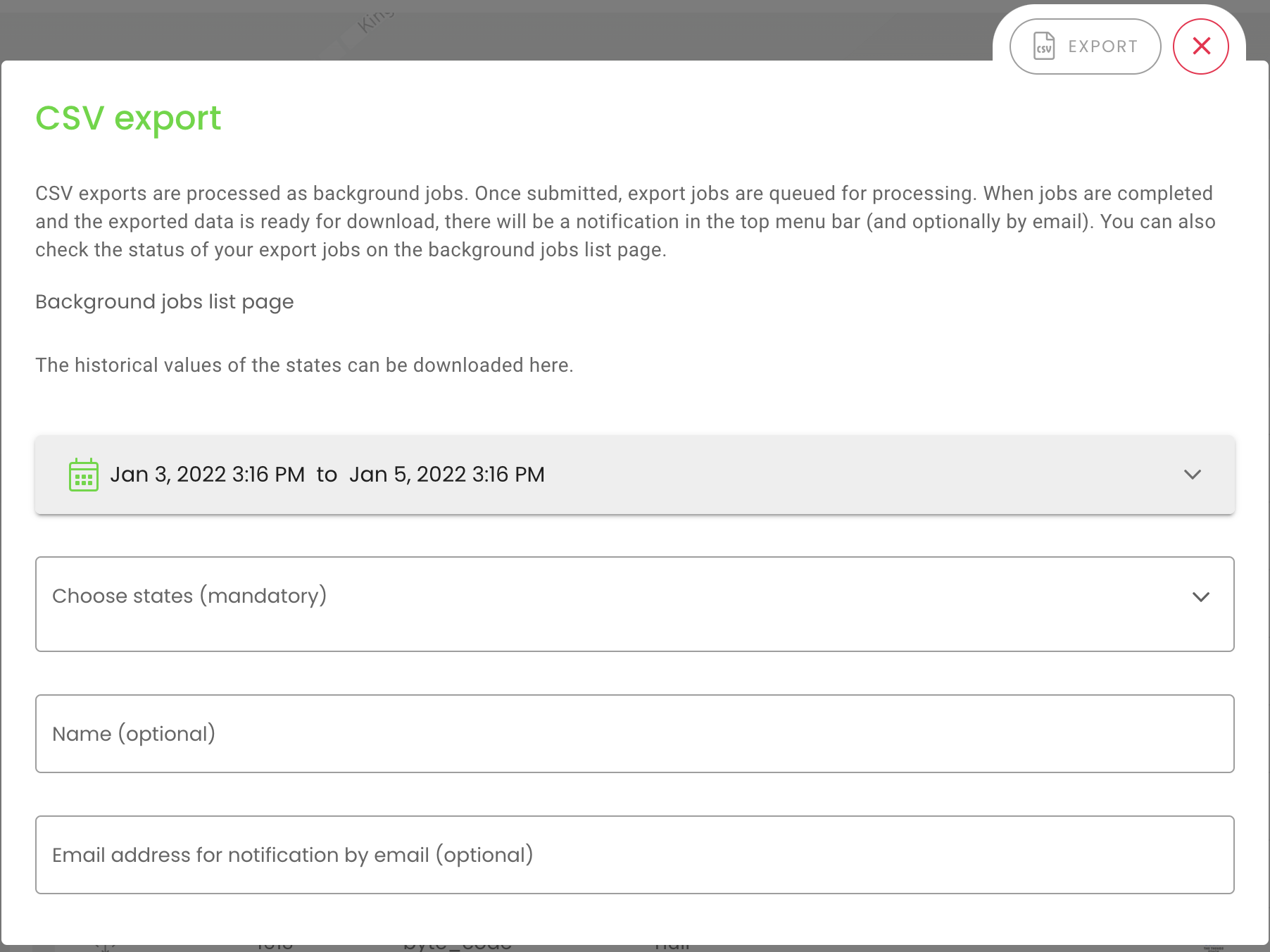
When you click on the CSV icon, a new window will open where you can select the time period as well as select the required data points. You can also specify a name and an email address to which a download link will be sent after the download is finished. As soon as you select a data point, you can generate the CSV-file by clicking on the “export” button.
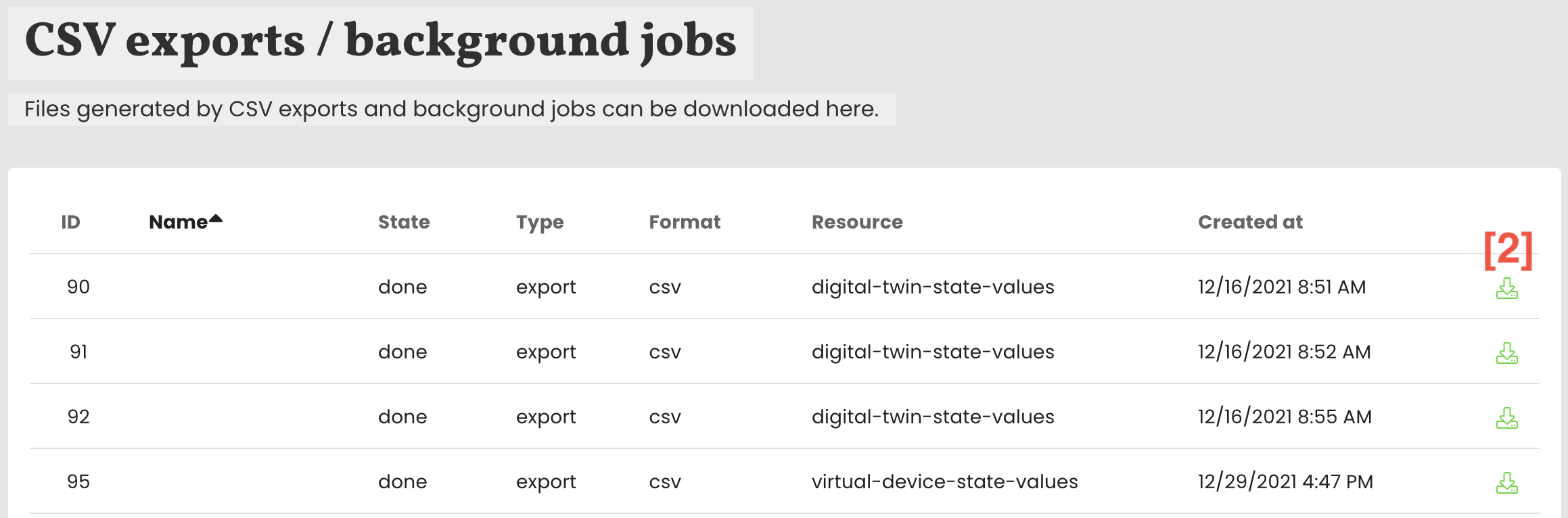
You can find the CSV-file by clicking on the “CSV” button in the top right corner of the menu bar. Then the page “CSV-Export” opens, where you can download the file. Here you can either click directly on the icon located on the right side of the line [2], or you can select the file and click on the download icon.
CSV export for multiple virtual devices
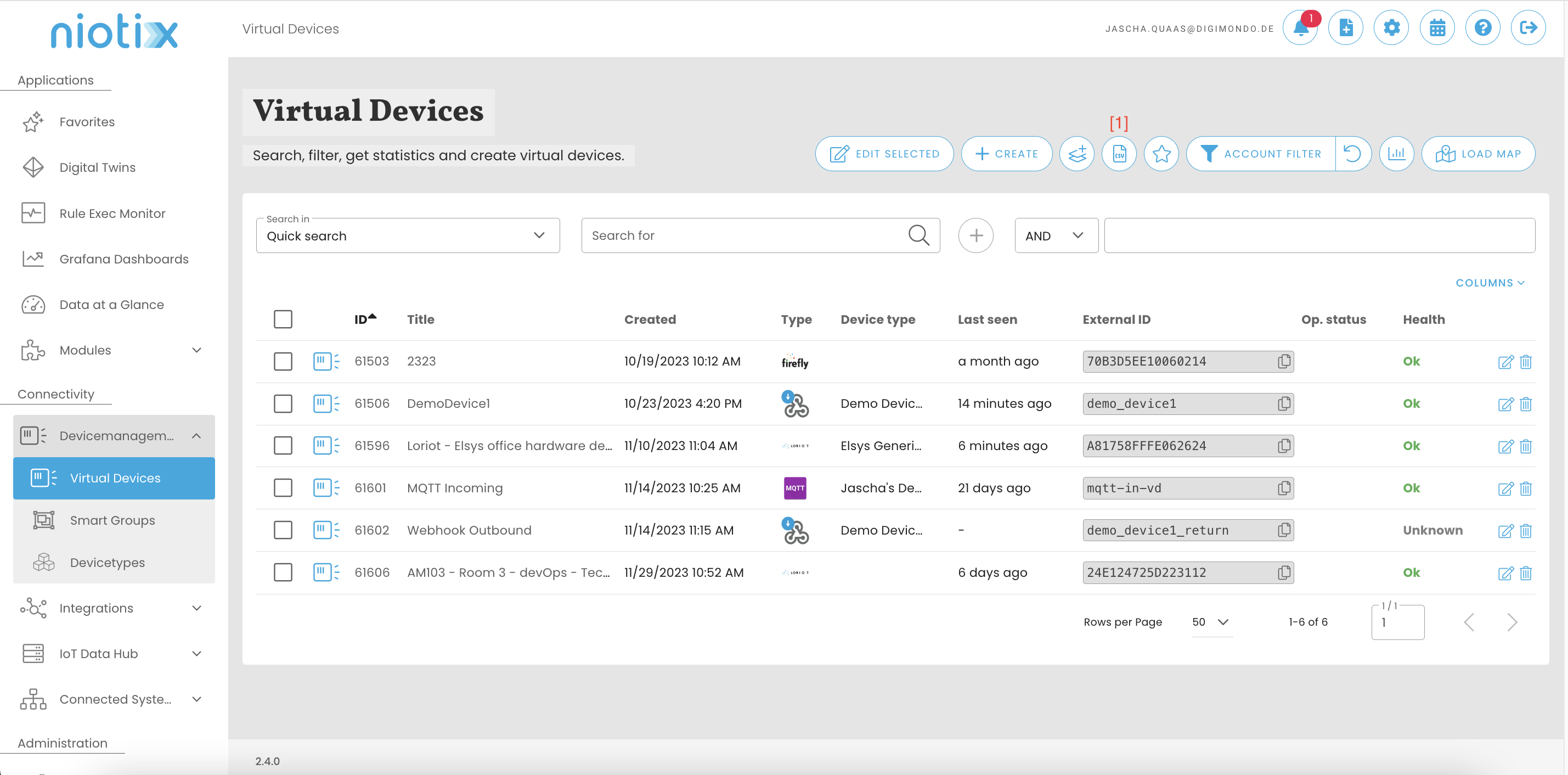
If data from multiple virtual devices is to be exported, the CSV export function from the overview of virtual devices can be used [1]
A dialogue opens in which the settings for the export are made. The virtual devices can be selected using filter criteria [1], e.g. based on the device group. After adding the filter criteria, the number of virtual devices included in the current setting is displayed.
By default, filters work on “partial hits”, i.e. a filter for Id 123 finds both the device with the Id 123 and all other devices with this character combination, e.g. 1123 or 51234. To get only “exact hits”, the filter criterion must be set to “”, e.g. “123”.
If not all data states are to be exported, individual/multiple data states can be selected manually. [2]
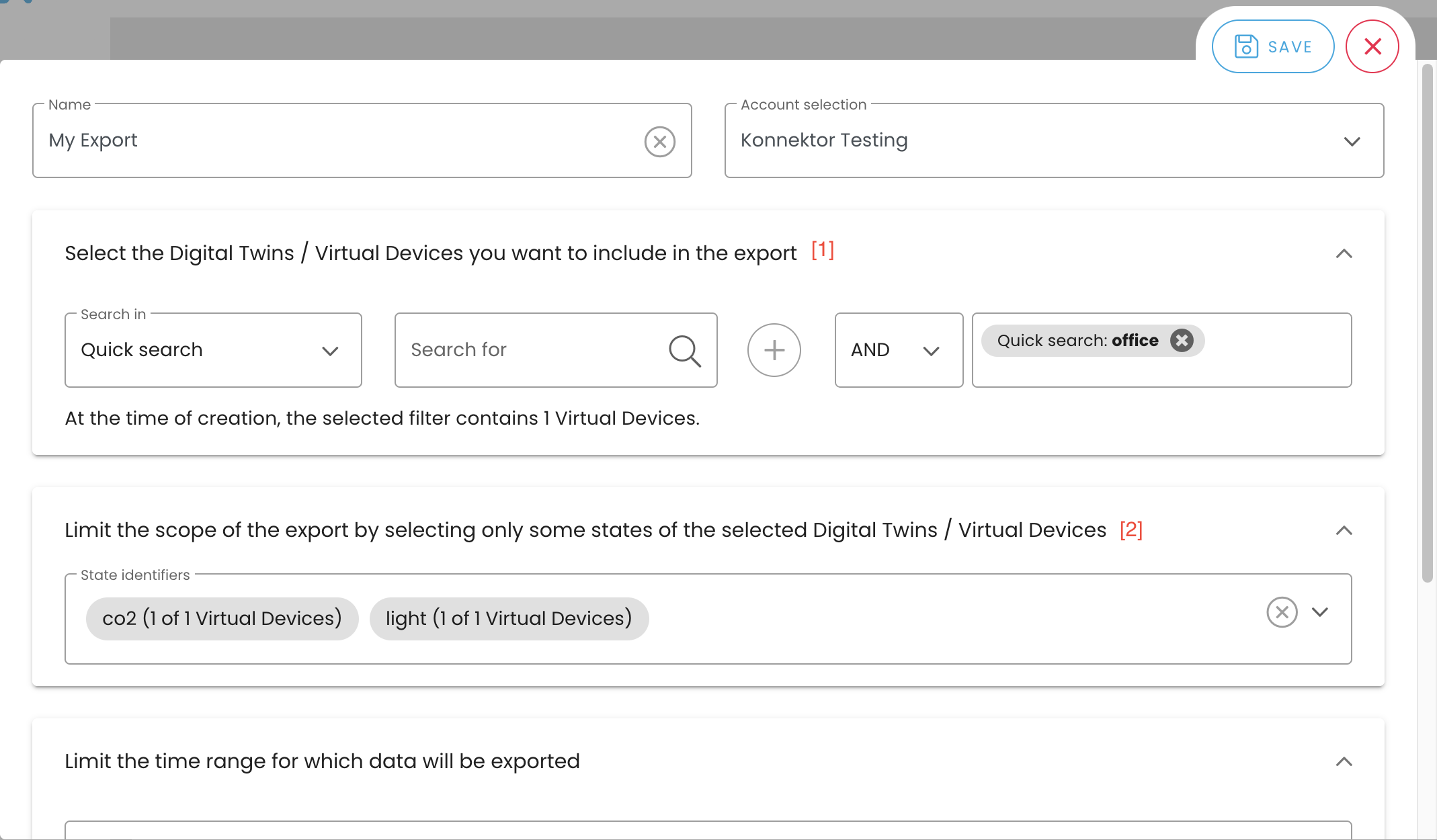
The export period and aggregation of the data can also be defined. After saving, the export is executed in the background and can be downloaded via the “Background jobs” menu item in the “Digital twins & virtual devices exports” tab.