Overview
In an integration flow, all data packets for an account are processed first. Filters restrict forwarding to packets that match defined criteria — for example for specific Digital Twins, data points, or connectors. Data flow and triggers are described in the Integration flows chapter.
Use cases
- Send readings only for selected Virtual Devices or Digital Twins to an external system.
- Filter by data point key or type (e.g. numeric values only, or a specific
state_identifier). - Express complex conditions with JSONata or JavaScript (extended mode).
Prerequisites
- Basic understanding of the integration flow (triggers, steps, data objects).
- For an end-to-end test: a working integration flow with an outgoing connector (e.g. Webhook).
Access & navigation
Under Integrations > Filters, filters can be created and edited. Create a new filter with the Create button ().
Configuration
Dialog fields
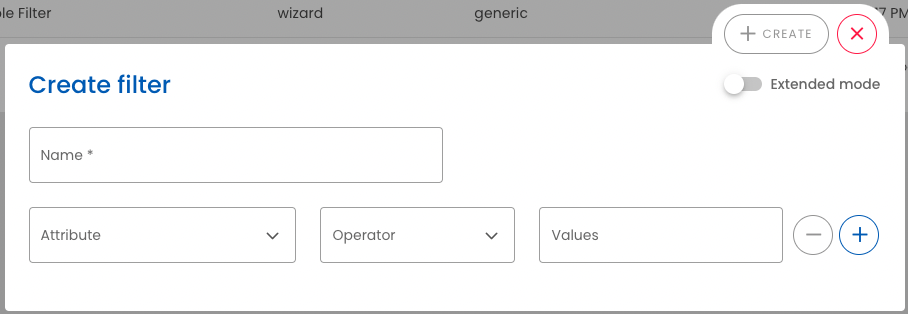
After Create, the configuration dialog opens. Main fields:
| Field | Description |
|---|---|
| Name | Unique name for the filter. |
| Extended mode | When enabled, nested filters or expressions can be used in extended mode. |
| Type | javascript or jsonata. |
| Input type | For niotix data, choose generic. |
| Attribute, Operator, Value | In standard mode; see Attributes (standard mode) and Simple filter (standard mode). |
Attributes (standard mode)
The available options depend on the data packet context. Common attributes:
| Attribute | Meaning |
|---|---|
account_id |
Account ID the filter applies to. |
config_id |
Connector ID. |
state_id |
Data point ID. |
dtwin_id |
Digital Twin or Virtual Device ID. |
dtwin_title |
Digital Twin or Virtual Device title. |
twin_category |
Restrict to virtualDevice or digitalTwin. |
twin_tags |
Tag(s) on the Digital Twin or Virtual Device; comma-separated (tag1,tag2). For substrings, use the contains operator instead of equals. |
twin_key_value |
Key/value for custom properties (object); use contains instead of equals. |
state_identifier |
Data point key. |
state_type |
Data point type (number / string / boolean / json). |
parser_variable |
Variable assigned in the parser for this data point. |
source_identifier |
External ID of a Virtual Device. |
timestamp |
Packet timestamp. |
vdevice_groups |
Groups on the Virtual Device; comma-separated. For substrings, use contains instead of equals. |
Operators and row logic:
- Operator: Comparison operators for the condition.
- Value: Comparison value; multiple values in one field (confirm each with Enter) are combined with OR.
- + / −: Additional condition rows; AND between rows.
Simple filter (standard mode)
- Multiple values in one row: logical OR.
- Multiple rows: logical AND.
Example:
- Row 1:
dtwin_idequals12345 - Row 2:
state_identifierequalsenergy_kwh
Only data packets that satisfy both conditions pass the filter.
Extended mode
In extended mode, an expression in JSONata or JavaScript is used. For niotix data, set the input type to generic. The expression must evaluate to true or false.
Expressions typically use the input object (e.g. $.meta / $.value in JSONata, or x.meta / x.value in JavaScript). Which meta fields and payload parts are available and how they are structured depends on the trigger; the reference is in the Integration flows chapter: Explanation of the BEFORE STATE-HANDLING object, Explanation of the “After state handling” object, Alarm log was created/resolved object.
JSONata — Virtual Devices from a specific group only:
"Billing" in $.meta.vdevice_groups
JSONata — combine group and data point:
"Billing" in $.meta.vdevice_groups and $.meta.state_identifier = "energy_kwh"
JavaScript:
return Array.isArray(x.meta.vdevice_groups) &&
  x.meta.vdevice_groups.includes("Billing") &&
  x.meta.state_identifier === "energy_kwh";
Test filter in the integration flow
Testing is done through an integration flow:
- Save the filter.
- Create an integration flow with a matching trigger and add the filter as a step.
- Add an outgoing connector as the last step (e.g. Webhook (Outgoing)).
- Produce a test value (e.g. change a data point on a Virtual Device).
- Check the result in Connector logs:
- If the filter matches, the packet is processed by the outgoing connector.
- If the filter does not match, no packet is forwarded.
Permissions
Creating and editing filters requires the appropriate account permissions for Integrations. Overview of roles: Permissions.
Troubleshooting
- No data at the outgoing connector: Check whether the integration flow trigger fires, whether the filter condition matches the test packet, and whether the filter is placed before the outgoing connector in the flow.
- Unexpected result from the filter in extended mode: Check JSONata or JavaScript syntax; the expression must be boolean (
true/false).
Related pages
- Integration flows — data flow, triggers, example payloads
- Transformations — downstream payload shaping
- Connectors — incoming and outgoing connectors