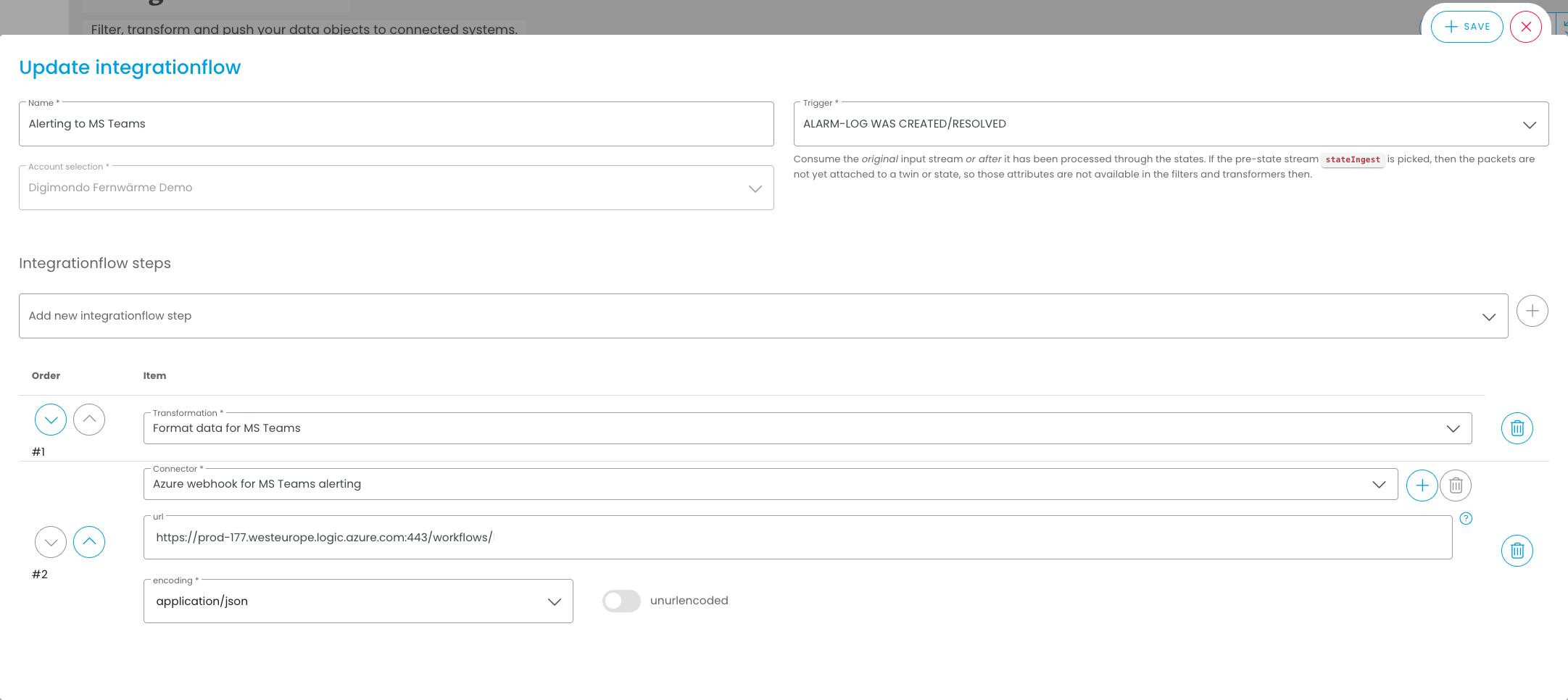
Alarm log entries can be used via integration flows for active, immediate alerting using the ALARM_LOG WAS CREATED/RESOLVED trigger to Slack / Microsoft Teams or other alerting systems.
Send messages to Microsoft Teams via webhook
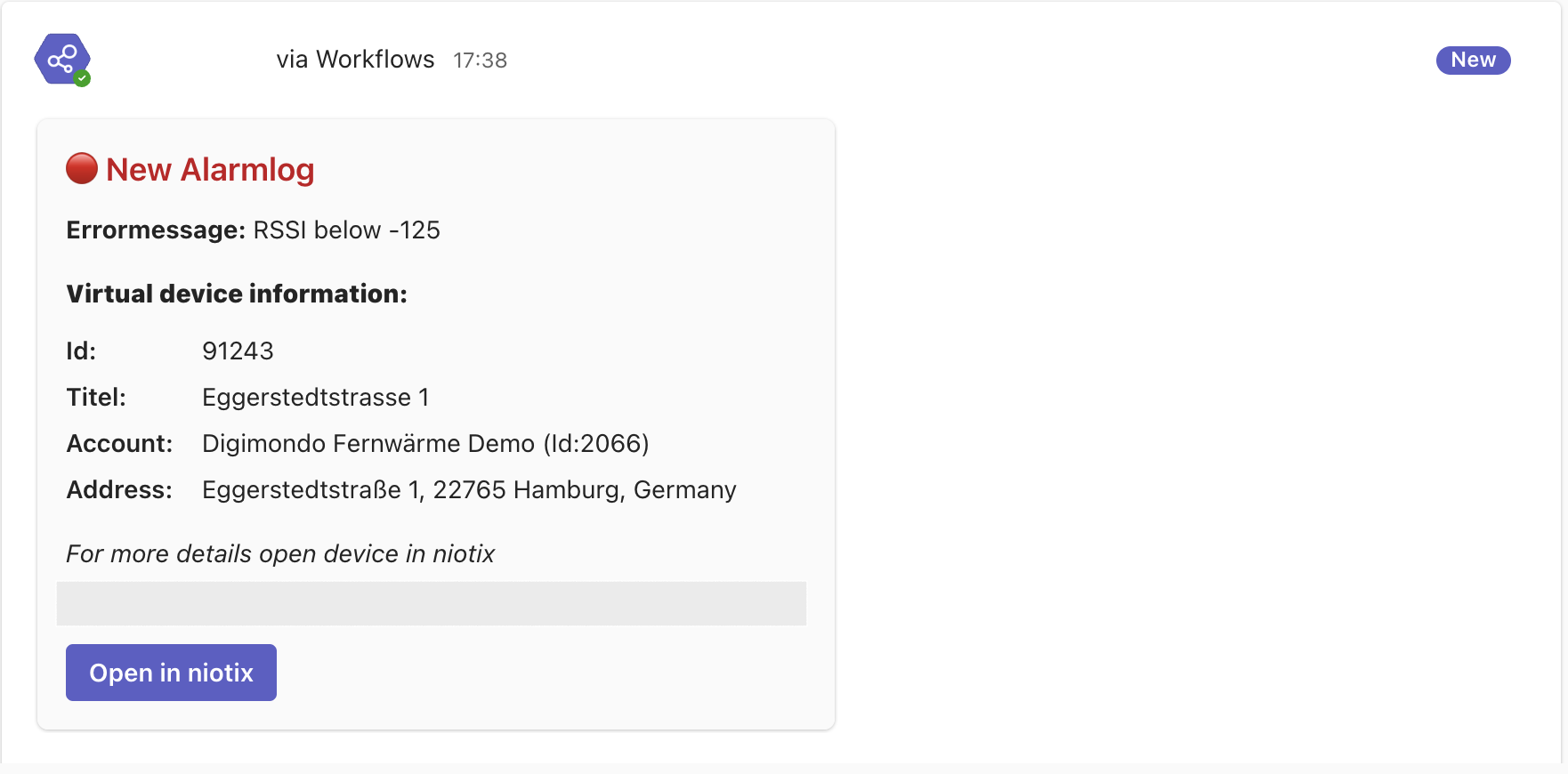
This chapter shows how the following exemplary message from a niotix alarm protocol entry can be triggered in Microsoft Teams:
Setting up the connector
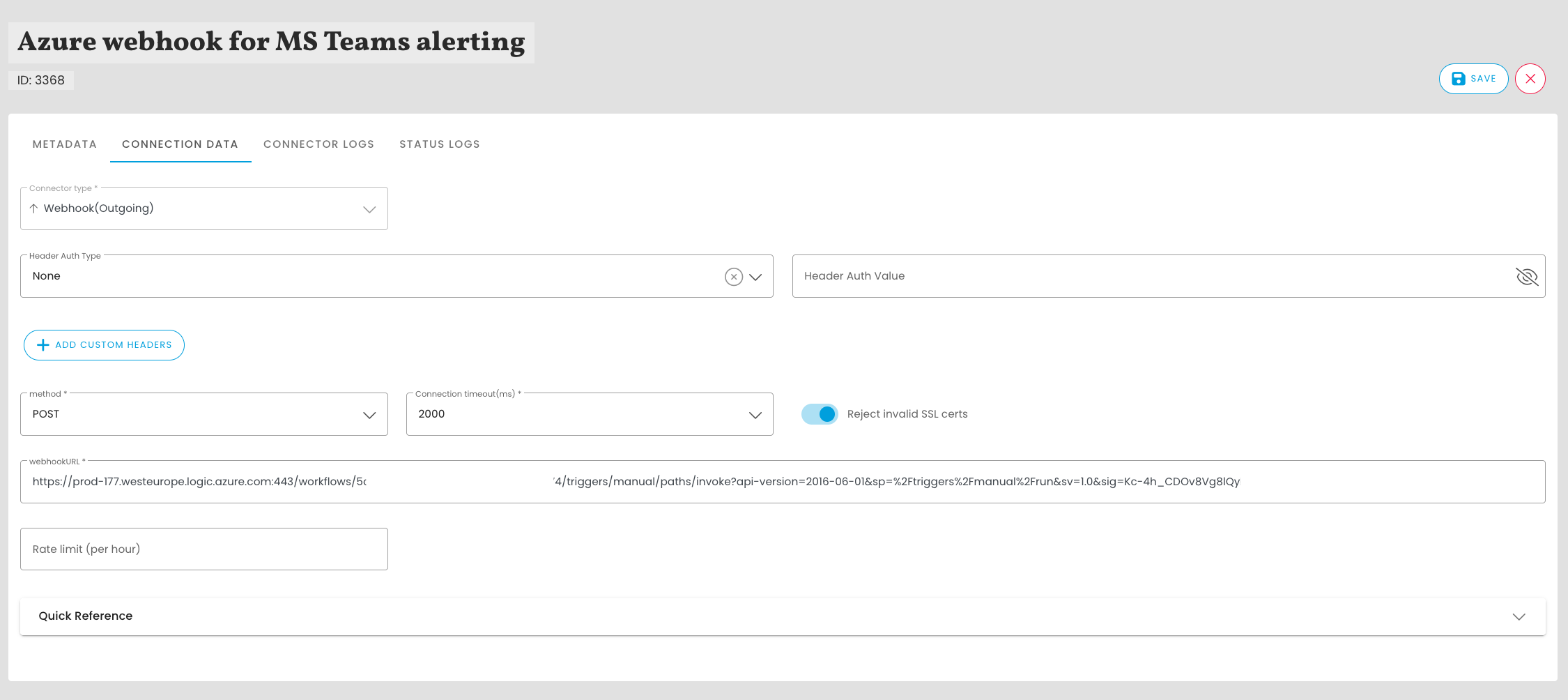
The messages are forwarded to Microsoft Teams via webhook. The necessary configuration can be found in the Microsfot Teams documentation: Microsoft Teams documentation.
Once the webhook has been set up, the url can be used in a “Webhook(Outgoing)” connector as webhookURL.
Setting up a transformation
To create a well-structured message, a transformation can be used that structures the data from the ALARM_LOG WAS CREATED/RESOLVED event in the format expected by Microsoft Teams. Example of such a transformation in JSONATA:
{
  "type": "message",
  "attachments": [
    {
      "contentType": "application/vnd.microsoft.card.adaptive",
      "contentUrl": null,
      "content": {
        "$schema": "http://adaptivecards.io/schemas/adaptive-card.json",
        "type": "AdaptiveCard",
        "version": "1.2",
        "body": [
          {
            "type": "TextBlock",
            "text": $.value.is_resolved ? "🟢 Resolved Alarmlog" : "🔴 New Alarmlog",
            "weight": "Bolder",
            "size": "Large",
            "color": $.value.is_resolved ? "Good" : "Attention"
          },
          {
            "type": "TextBlock",
            "text": "**Errormessage:** " & $.value.alarm_message,
            "wrap": true
          },
          {
            "type": "TextBlock",
            "text": "**Virtual device information:**",
            "weight": "Bolder",
            "spacing": "Medium"
          },
          {
            "type": "FactSet",
            "facts": [
              {
                "title": "Id:",
                "value": $string($.value.alarm_origin.id)
              },
              {
                "title": "Titel:",
                "value": $.value.alarm_origin.title
              },
              {
                "title": "Account:",
                "value": $.meta.account_name & " (Id:" & $.meta.account_id & ")"
              },
              {
                "title": "Address:",
                "value": $.value.alarm_origin.address
              }
            ]
          },
          {
            "type": "TextBlock",
            "text": "*For more details open device in niotix*",
            "wrap": true,
            "spacing": "Medium"
          }
        ],
        "actions": [
          {
            "type": "Action.OpenUrl",
            "title": "Open in niotix",
            "url": $.value.alarm_origin.link,
            "style": "positive"
          }
        ]
      }
    }
  ]
}
Setting up a filter
If not all alarm log entries are to be forwarded, filters can be used to restrict the messages to be forwarded. Examples:
- Only threshold alarms from a specific smart group (with ID 42) should be taken into account:
"$.value.alarm_origin.id = 42 and $.value.log_category = 'packet-threshold'" - Only alarm protocol entries from a specific device group with the level “error” should be taken into account:
"group42" in $value.alarm_origin.groups and $value.alarm_level = "error"
Create integration flow
In the final step, the transformation, connector and optionally the filter are linked together in an integration flow with the trigger ‘ALARM_LOG WAS CREATED/RESOLVED’: