- Overview
- Use Cases
- Prerequisites
- Access & Navigation
- Creating Devices with OTAA and ABP
- Device Options and LoRaWAN Settings
- Packet Journal and Packet History
- Packet Detail View
- Outbox and Downlink Analysis
- ADR and Join Behavior
- Legacy Features: Applications and Device Classes
- Troubleshooting
- Common Questions
Overview
Device management in Firefly provides the LoRaWAN-specific view of devices. In a niotix-based setup, the most important topics are:
- creating and updating devices
- OTAA- and ABP-specific keys and parameters
- analyzing uplinks, downlinks, and MAC events
- troubleshooting through Packet Journal, packet details, and Outbox
On the niotix side, create, import, and synchronization are typically bound to a Virtual Device and the Firefly connector. Downlinks can be triggered from Rules on a Digital Twin.
Use Cases
This page is relevant when:
- new LoRaWAN devices are being created
- OTAA or ABP parameters need to be verified
- missing uplinks or downlinks are being analyzed
- join issues, frame-counter issues, or radio quality issues are suspected
Prerequisites
Managing devices usually requires:
- access to the correct Firefly organization
- a role with write access to device-related areas
- knowledge of the device mode OTAA or ABP
- the required keys and regional parameters
Access & Navigation
The main entry points are:
- in Firefly: Organization → Devices
- in niotix: Virtual Device · Firefly connector · Rules / Digital Twin

Creating Devices with OTAA and ABP
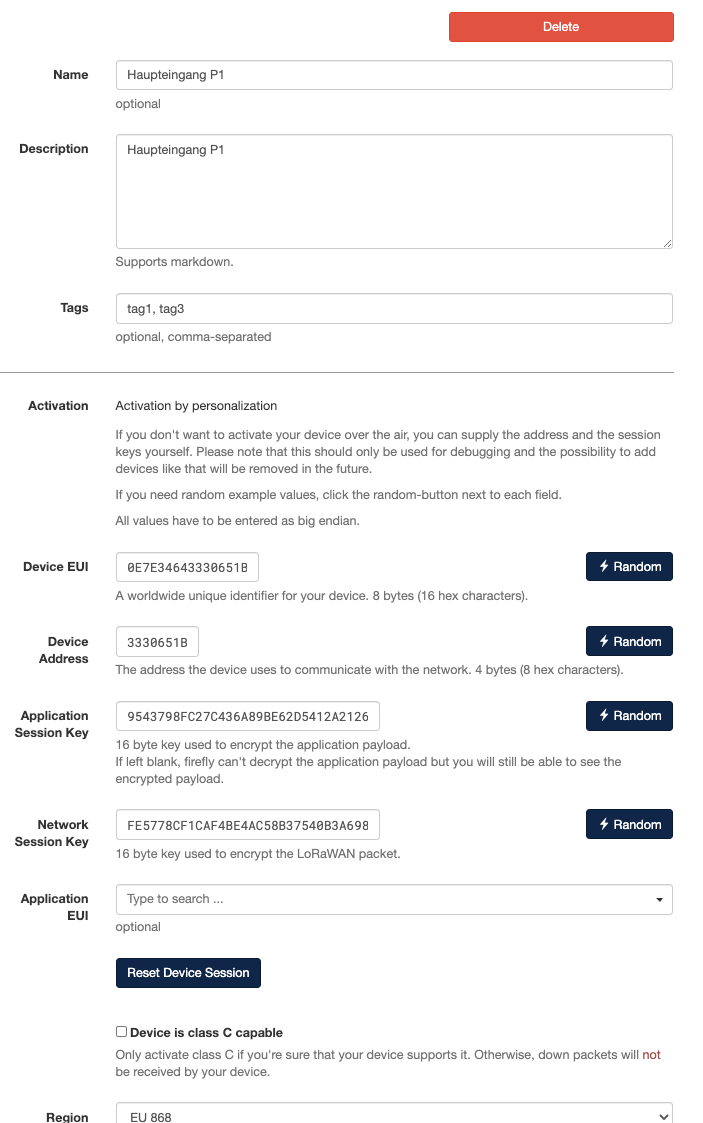
Firefly supports both common activation methods:
- OTAA
uses the join process, DevEUI, and Application Key - ABP
uses fixed session data such as Device Address and session keys
In Firefly:
- OTAA devices require EUI and Application Key
- ABP devices require Device Address and Network Session Key
niotix reflects the same distinction in the Firefly connector. The default activation type there is OTAA.
Device Options and LoRaWAN Settings
For niotix-based setups, the following device options are especially relevant:
| Field | Function | Especially relevant when |
|---|---|---|
| Activation type | Defines whether the device is operated via OTAA or ABP. This determines which keys and address fields must be maintained. | Always when creating or switching a device. |
| Device ID / EUI | Unique identifier of the LoRaWAN device. It is mainly used for join handling and device assignment in OTAA setups. | Important for new device creation, replacement, or join issues. |
| Device Address | Active LoRaWAN network address of the device. For ABP, it is maintained explicitly; for OTAA, it is assigned during the join process. | Relevant for ABP devices and when analyzing session or address conflicts. |
| Application Key | OTAA key for the join handshake. Without the correct key, the device cannot join successfully. | Relevant for OTAA devices. |
| Application Session Key | Session key used to encrypt the application payload. If it is missing or wrong, Firefly cannot decrypt payload data correctly. | Relevant for ABP devices and payload-related issues. |
| Network Session Key | Session key used for LoRaWAN communication on the network level. It is required for correct packet processing. | Relevant for ABP devices and issues with packet acceptance or integrity. |
| Class C | Marks devices that are continuously ready to receive. This allows downlinks to be delivered even without a directly preceding uplink. | Relevant for immediate downlinks, always-on receivers, and multicast. |
| Region | Defines the used channel plan or regional radio profile. Device, gateway, and Firefly must all use the same region. | Relevant for join problems, missing uplinks, or wrong frequencies. |
| RX2 Data Rate | Defines the data rate used in the RX2 receive window for downlinks. This affects the RX2 spreading factor and bandwidth. | Relevant for downlink issues or when devices must use a specific RX2 profile. |
| ADR Limit | Limits the maximum data rate that Firefly may use when applying automatic data rate adaptation (ADR). This caps ADR behavior on the upper end. | Relevant with unstable radio quality or when a device should not switch to the highest possible data rate. |
| Deduplicate | Suppresses duplicate uplink packets from the same transmission, for example when the same packet arrives multiple times with the same frame counter. | Relevant for duplicate packets, repeated events, or the same uplink being received by multiple gateways. |
| Skip FCnt Check | Skips the strict validation that the frame counter increases correctly. This can allow packets whose FCnt progression would otherwise be treated as invalid. | Only for targeted troubleshooting, migration, or devices with problematic FCnt behavior. |
| DevStatusReq | Enables status requests via the LoRaWAN DevStatusReq MAC command. This can be used to request battery or power status and SNR information. | Relevant when device health should be monitored regularly and the device supports this command. |
For OTAA devices, device address and session context are set during the join process. OTAA devices should therefore not be treated like fixed ABP parameter sets.
Packet Journal and Packet History
The Packet Journal is the main operational view for device diagnostics. It shows recent uplinks, downlinks, and MAC events in one continuously updated list.
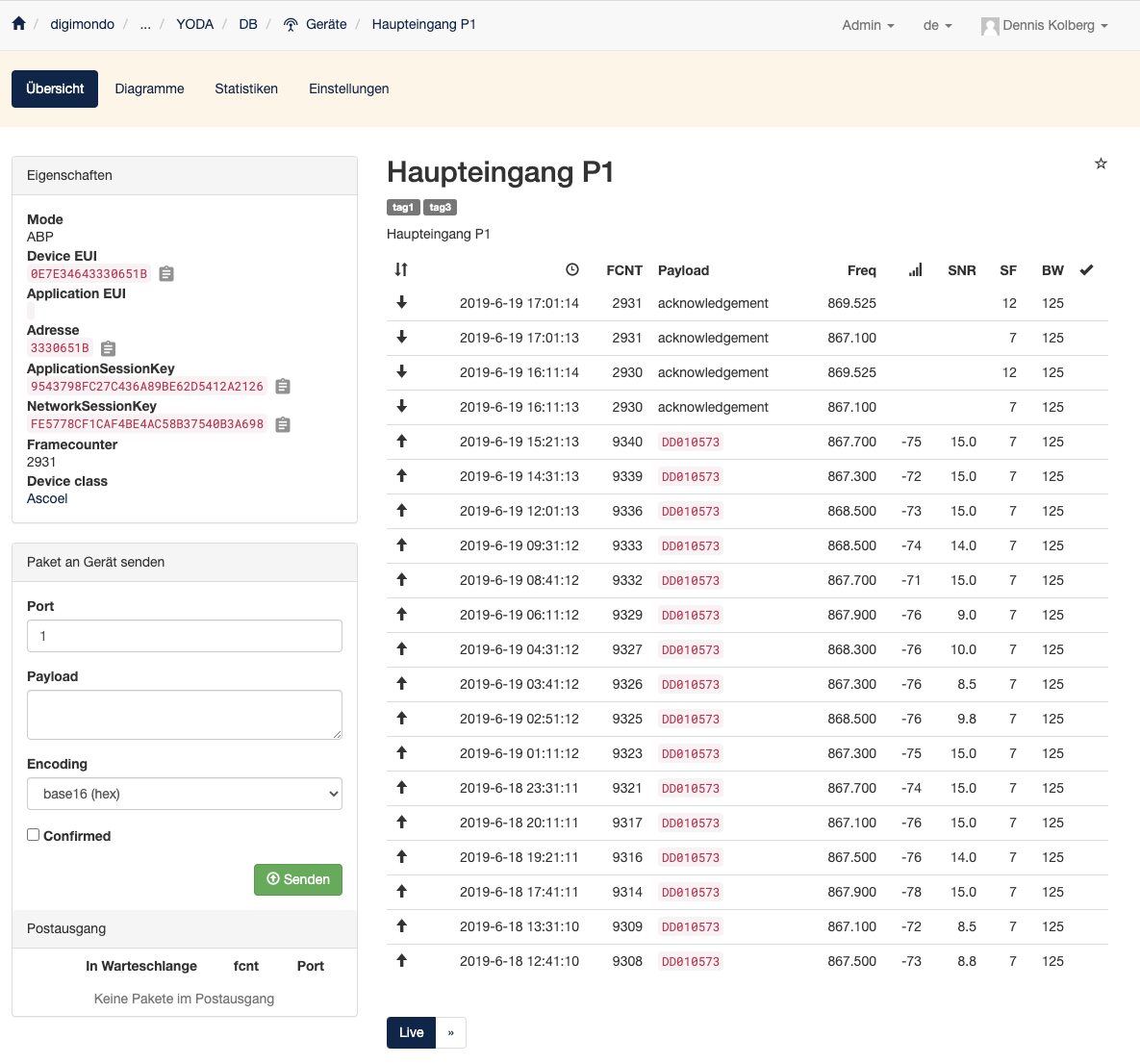
The main columns and indicators are:
- direction
upward arrow for uplink, downward arrow for downlink - time
transmit or receive timestamp - FCNT
frame counter used to spot repetition and session issues - payload
application payload or event type - Freq
radio frequency - RSSI
signal strength - SNR
signal-to-noise ratio - SF
spreading factor - BW
bandwidth - Ack
acknowledged or still waiting-for-ack packets
Practical diagnostic value:
- unusual RSSI/SNR values point to radio or antenna issues
- unexpected frequency or SF values point to region or ADR topics
- inconsistent FCNT sequences can indicate join or session problems
- missing Ack states help identify downlink or receive-window issues
Packet Detail View
Each row in the Packet Journal can be expanded into a detailed packet view. This is the key view for deeper analysis.
Packet details usually include:
- timestamps
- packet UUID or slug
- application payload and payload size
- raw LoRaWAN payload
- decoded payload if available
- port, SF, BW, FCNT, and frequency
- gateway information such as RSSI, SNR, and gateway EUI
- downlink lifecycle states such as pending, scheduled, sent, and confirmed
There is also a raw view that exposes the underlying packet data in technical form. This is especially useful for:
- parser and payload analysis
- comparing decoded and raw messages
- checking gateway metadata and MIC or MAC-related information
Outbox and Downlink Analysis
The Outbox shows pending downlinks that have not yet been fully sent.
The main columns are:
- Queued
- fcnt
- Port
The Outbox is useful when:
- a downlink was created but does not reach the device
- the wrong port was used
- the device does not open a usable receive window
- Firefly cannot yet determine a suitable gateway for transmission
If an entry remains in the Outbox for a long time, check:
- whether recent uplinks are available
- whether gateway and device use the same region
- whether the device class and RX configuration are correct
- whether an outdated test downlink should be deleted before retrying
ADR and Join Behavior
Firefly continuously processes ADR-related data. This includes:
- history of recent uplinks
- ADR-related state tracking
- MAC commands such as LinkAdr
For joins, the key points are:
- OTAA uses an explicit join flow
- DevNonce reuse is detected and can cause join issues
- join-accept and session data are reset on a per-device basis
Legacy Features: Applications and Device Classes
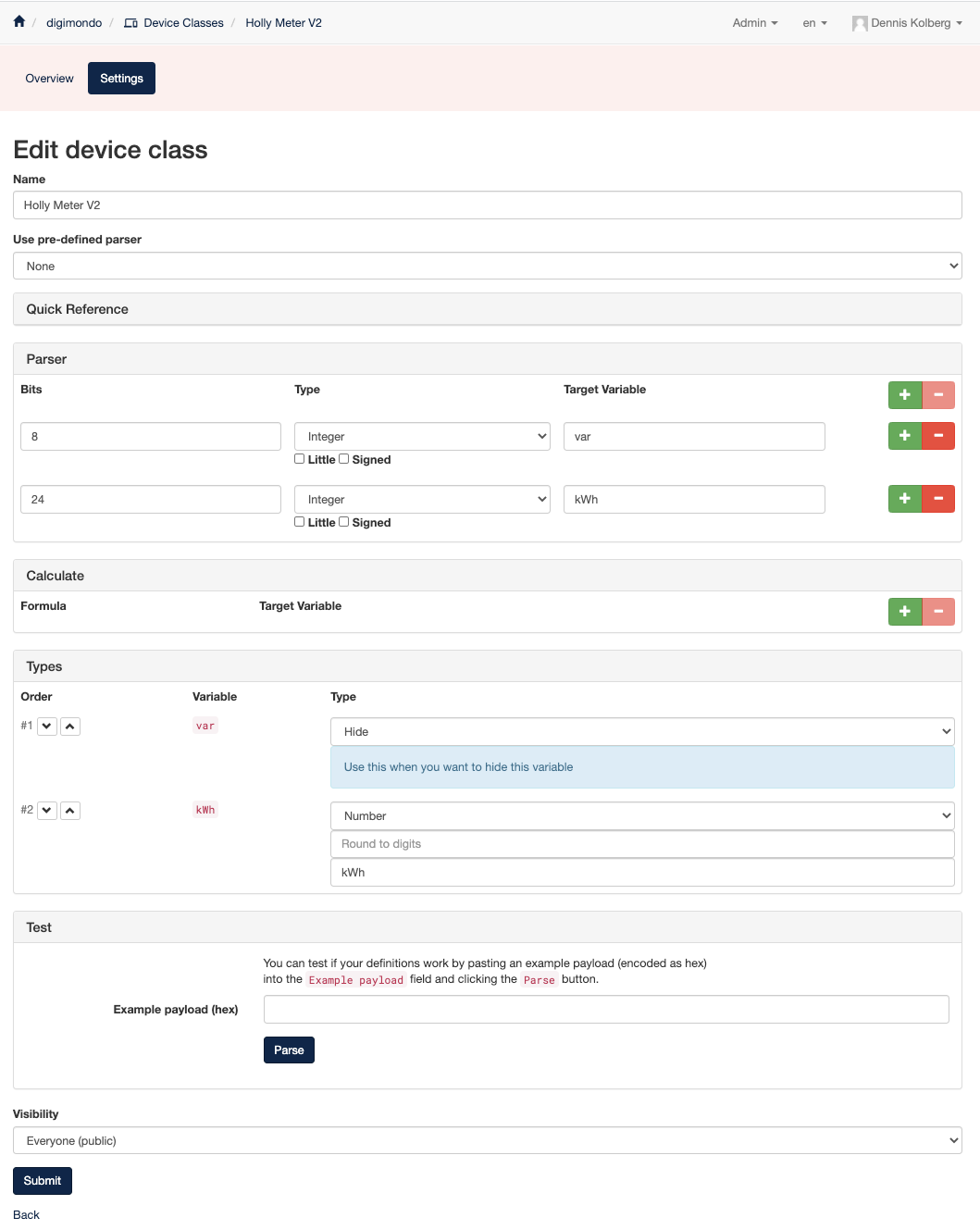
Applications and Device Classes still exist in Firefly. In niotix-based setups, however, they should be treated as limited legacy functionality.
For documentation purposes, this means:
- they may still be visible in Firefly
- they are not the recommended main path for niotix integrations
- they should not be confused with the current niotix-centered operating model
Troubleshooting
Typical checks for device issues:
- OTAA or ABP selected correctly
- keys complete and in the correct format
- region and RX2 configuration match
- recent uplinks visible in the Packet Journal
- Outbox is empty or at least understandable
- FCNT progression looks plausible
For join issues, these checks are especially helpful:
- OTAA keys and EUI are correct
- DevNonce is not being reused
- gateway receives uplinks reliably
- region and gateway setup are correct
Common Questions
What is the Packet Journal best used for?
The Packet Journal is the fastest operational view of device health. Uplinks, downlinks, and MAC events are visible together, which makes it easy to assess signal quality, FCNT behavior, ack status, and obvious radio issues.
When should the packet detail view be used?
Whenever the table values are not sufficient. The detail view is especially helpful for gateway metadata, payload analysis, status chains, and raw LoRaWAN data.
What does it mean when an Outbox entry does not disappear?
It means the downlink was accepted but not yet delivered successfully. The most common reasons are missing recent uplinks, no suitable gateway, or no usable receive window.
Why does an OTAA device not join?
Common causes are invalid keys, reused DevNonce values, the wrong region, or missing or unusable gateway uplinks. See also Troubleshooting.