In use cases with a high number of devices, a large number of alarms are generated by devices and infrastructure that need to be automatically integrated into fault clearance processes as required.
Alarm reports solve this problem by filtering the alarms from the devices precisely and aggregating them in a report or by providing alarms from the monitoring of the package quantity to the responsible persons by e-mail.
If immediate information about an individual device alarm is required, a notification can be sent to a messenger such as MS Teams or Slack via an integration flow. See section Integration flows
Management of alarm reports
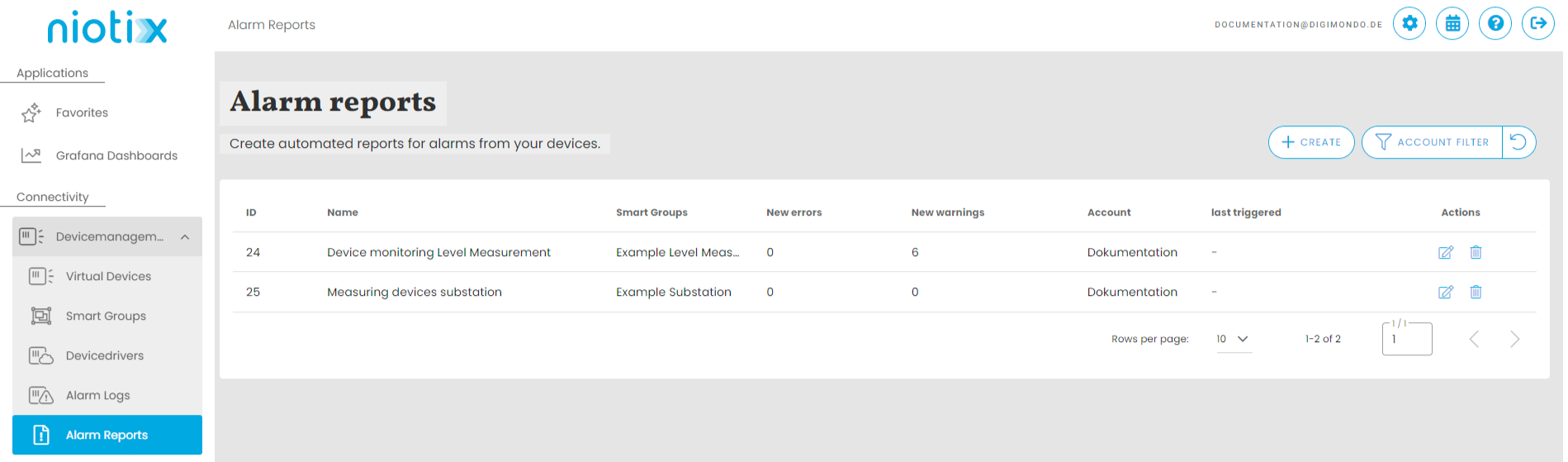
Alarm reports are regularly created in niotix based on specific filter criteria and sent to defined recipients as an e-mail. Alarm reports are managed either across accounts and use cases via the menu item Device management / Alarm reports or from within a smart group via the “Alarm reports” tab.
The basis for the alarm reports is the alarms from the alarm log. These are configured differently depending on the source object: Virtual Devices: Configuration in the device driver in the Device Status Configuration tab Smart Groups: Configuration in the smart group in the Meta Information tab
The following information is available in the list of alarm reports:
- ID: The ID of the alarm report
- Name: The name of the alarm report
- Smart groups: The Smart Group assigned to this report.
- New Errors: The number of new errors since the last report, based on the filter settings
- New Warnings: The number of new warnings since the last report, based on the filter settings
- Account: The account to which the alert report is assigned.
- Last run: The time when the report was last run. Depending on the configuration of the report, it can be executed without sending an e-mail.
- Actions: Buttons for editing and deleting the alarm report
Creation of alarm reports
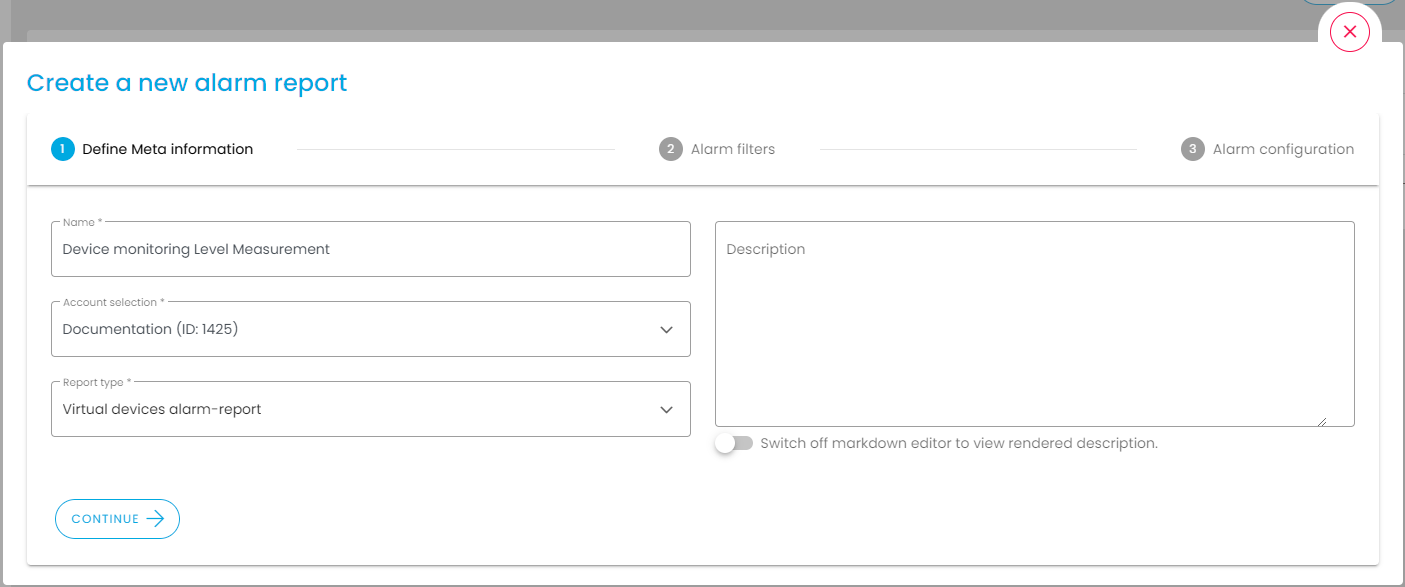
Alarm reports are created via the Create button () in three steps:
1. Define meta information
In the first step, the basic information of the alarm report is entered:
- Name: Give the alarm report a meaningful name so that it can be easily assigned later. The name of the alarm report can also be used in the subject of the e-mail.
- Account: Select the account in which the alarm report is to be created.
- Report type: Select a report type. The “Virtual devices alarm report” type is a report for the alarms of the individual virtual devices. The “Packet monitoring alarm report” type contains information on packet alarms from smart groups and can be used, for example, to monitor the transmission infrastructure.
- Description (optional): Specify further information, for example on the type of error or the purpose of the report
2. Alarm filter
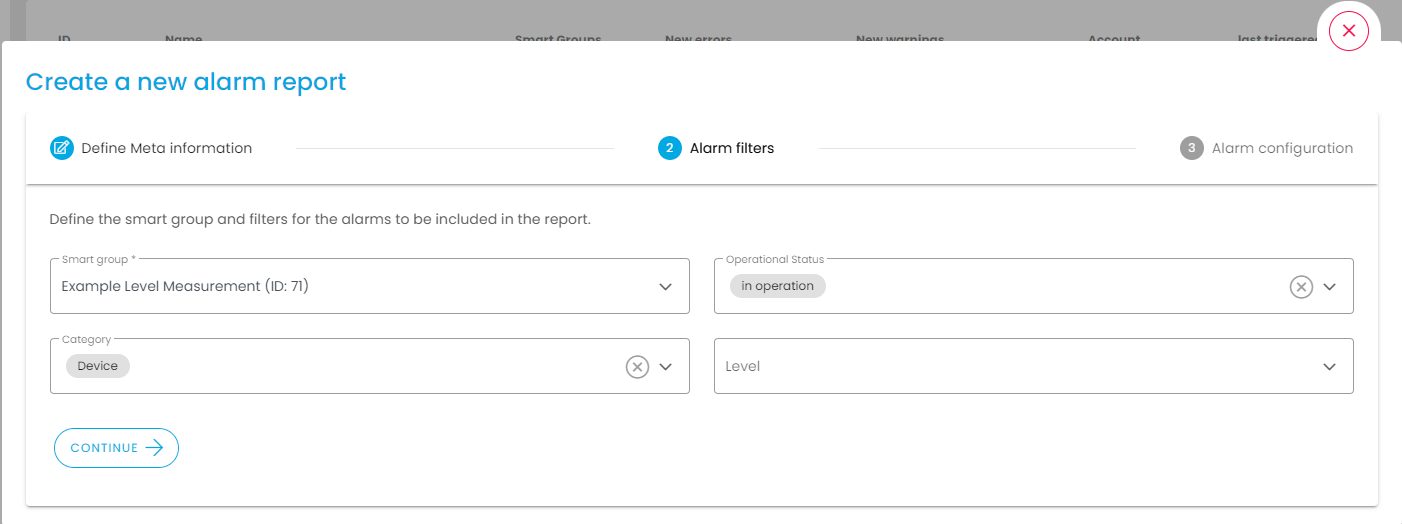
The second step is to select which alarms are to be included in the alarm report.
Type Virtual devices Alarm report
The following configuration options are available for an alarm report of the type “Virtual devices”:
- Smart Group: Select the Smart Group for which a report is to be created. If no Smart Group exists in an account, a Smart Group must be created first.
- Category (optional): Filter on specific categories of the alarm according to the device status configuration of a Virtual Device.
- Operating status (optional): Filter on specific operating statuses of the Virtual Devices. For example, if the status “In operation” is selected, only alarms from devices with the status “In operation” are included in the report.
- Level (optional): Filter on specific alarm levels (error or warning) which are relevant for the report. Alarm levels that are not selected here do not appear in the report. The content of the report can be defined more precisely in step 3.
Type packet monitoring alarm report
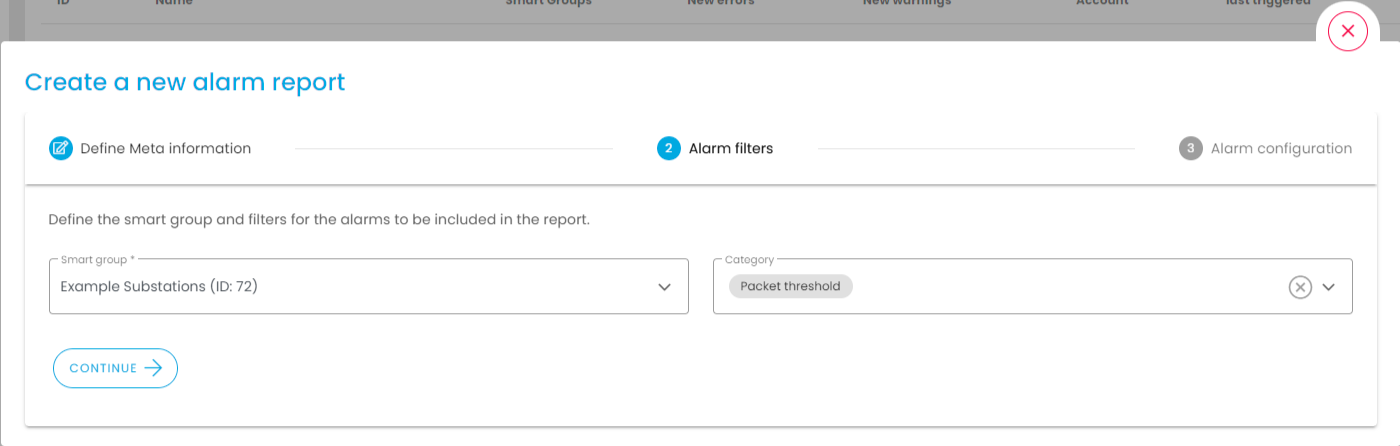
The following configuration options are available for an alarm report of type “Package monitoring”:
- Smart Group: Select the Smart Group for which a report is to be created. If no Smart Group exists in an account, a Smart Group must be created first.
- Category: Filter on specific categories of the alarm according to the configuration of the Smart Group. Currently only the category “Package quantity” is available.
3. Alarm configuration
The third step defines when a report is to be executed, as well as the content and destination of the report.
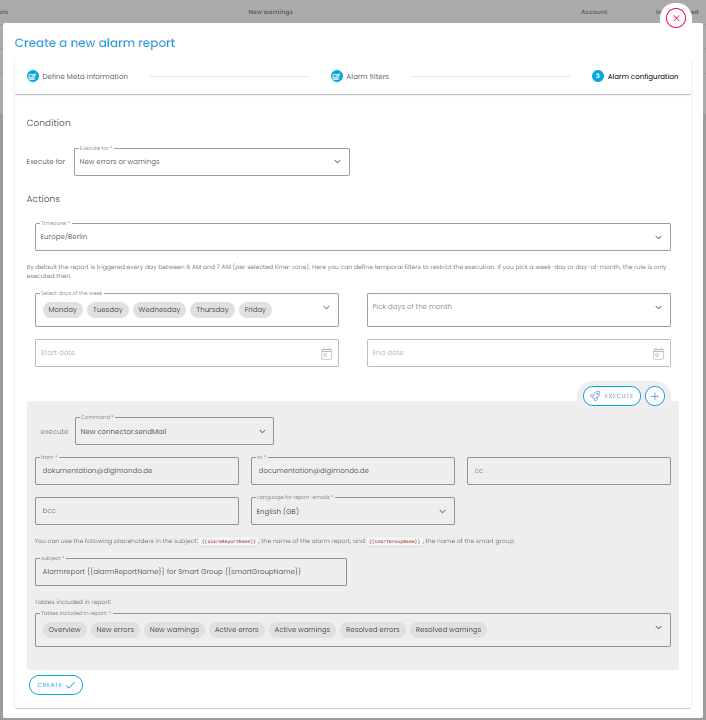
Type Virtual devices Alarm report
The following configuration options are available for an alarm report of the type “Virtual devices”:
- Condition: Select for which type of alarm a report should be executed. For example, for the “New errors and warnings” setting, a report is always run if the filter criteria apply and there are new errors or warnings. With the “Active errors or warnings” setting, a report is always run if there are active errors or warnings and the filter criteria apply (even without new errors or warnings).
- Actions: Define the content and target of the report, as well as the time period in which a report should be sent.
- Time zone: Select the time zone in which the report should be executed. The report will be executed between 6:00 am and 7:00 am in the selected time zone
- Days of the week (optional): Select the days of the week on which a report should be sent
- Days of the month (optional): Select days of a month on which a report should be sent
- Start date (optional): Select a date from which reports should be sent
- End date (optional): Select a date by which reports should be sent. After the date has passed, the report is inactive
Then select an e-mail connector to be used for the report. This connector must first be created in the connectors menu. A dialog for entering the action details opens:
- Action: Select an email connector to be used for this report
- From: Select a sender, this will be taken from the connector
- To: Specify one or more email addresses to which the report should be sent
- cc (optional): Specify one or more e-mail addresses to which the report should be sent in the cc field
- bcc (optional): Specify one or more e-mail addresses to which the report should be sent in the bcc field
- Language: Specify a language for the report. Available are: German, English (GB), English (US)
- Subject: Enter a subject for the e-mail. The placeholders
{{alarmReportName}}for the name of the alarm report and{{smartGroupName}}for the name of the smart group can be used in the subject line - Table selection for the report: The following tables can be selected as content for the report
- Overview: A table with the numbers of new, resolved and active warnings and errors
- New errors: A table with all new errors (creation date of the error, error text, device name, address of the virtual device, category of the error)
- New warnings: A table with all new warnings (creation date of the warning, warning text, device name, address of the virtual device, category of the warning)
- Active errors: A table with all active errors (creation date of the error, error text, device name, address of the virtual device, category of the error)
- Active warnings: A table with all active warnings (creation date of the warning, warning text, device name, address of the virtual device, category of the warning)
- Resolved errors: A table with all resolved errors (creation date of the error, error text, device name, address of the virtual device, category of the error)
- Resolved warnings: A table with all resolved warnings (creation date of the warning, warning text, device name, address of the virtual device, category of the warning)
The created action can be tested via the Execute button (). The Create button () can be used to create further actions and the Delete button () can be used to delete them again
Package monitoring alarm report type
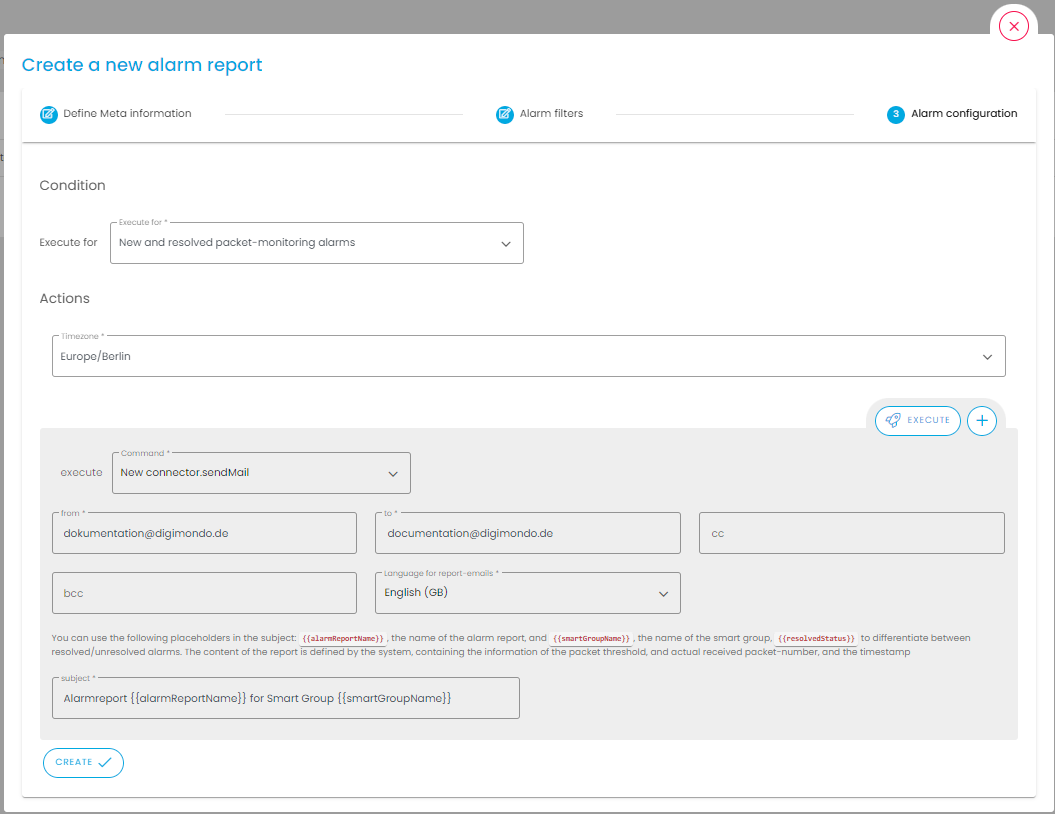
The following configuration options are available for an alarm report of type “Package monitoring”:
- Condition: Select for which type of alarm a report should be executed: New and resolved or only new packet alarms
- Actions: Define the content and destination of the report, as well as the time period in which a report should be sent.
- Time zone: Select the time zone in which the report should be executed. The report will be executed between 6:00 am and 7:00 am in the selected time zone
Then select an e-mail connector to be used for the report. This connector must first be created in the connectors menu. A dialog for entering the action details opens:
- Action: Select an email connector to be used for this report
- From: Select a sender, this will be taken from the connector
- To: Specify one or more email addresses to which the report should be sent
- cc: Specify one or more e-mail addresses to which the report should be sent in the cc field
- bcc: Specify one or more e-mail addresses to which the report should be sent in the bcc field
- language: Specify a language for the report. Available are: German, English (GB), English (US)
- Subject: Enter a subject for the e-mail. The placeholders
{{alarmReportName}}for the name of the alarm report and{{smartGroupName}}for the name of the smart group can be used in the subject line
The created action can be tested via the Execute button (). The Create button () can be used to create further actions and the Delete button () can be used to delete them again
Authorizations
The VirtualDevice.manage authorization is required at account level to create and view the alarm reports.