Device drivers are the central interface between raw data from connectors and Virtual Devices in niotix. The feature is aimed at IoT administrators who set up new device types and use cases in niotix. They serve three main purposes:
1. Payload transformation (Parser)
Device-specific messages – whether JSON, hex, base64 or other formats – are converted into a unified internal data format with defined variables. For example, a JSON object structure can be reshaped, a hex string decoded, or timestamps adjusted. These variables form the basis for the data points of Virtual Devices, into which measurements are written.
2. Device state evaluation (Device status config)
The device status config maps device-specific error and warning messages (e.g. battery, connectivity, sensor messages) to a unified internal model. This produces a consistent health state (“Health”) per Virtual Device, used in the UI, alarms, and reports – regardless of manufacturer format.
3. Standard downlinks (optional)
For supported connectors, predefined downlink messages (e.g. reset, on/off) can be stored in the device driver and are available on Virtual Devices.
A device driver thus combines parser, device status config and, if applicable, downlinks for one device type, and is shared by all Virtual Devices of that type – or, when using device templates, defined centrally in the template.
Best practice – mixed hardware: When different hardware is used, device drivers can be used to normalize data points and error messages from different manufacturers. Define a unified standard (e.g. variable names, units, error categories) and transform raw data via the parser or calculation variables (target variables) in the device driver into the desired format. This keeps reports, rules and dashboards manufacturer-independent.
Search for existing device driver
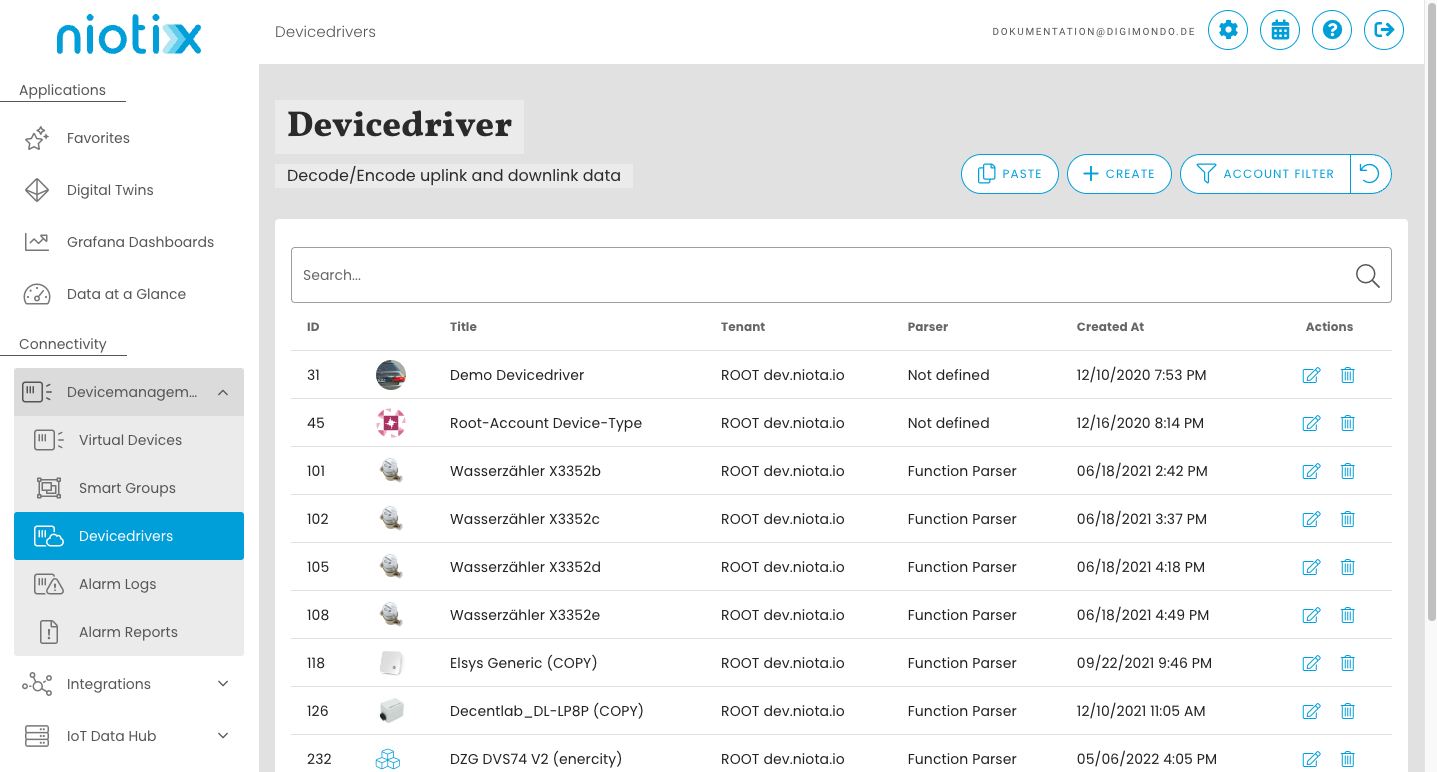
On the overview page, a search bar appears above the list of device drivers. You can search by type using the title or ID. As soon as you enter a character, search results are shown automatically.
Create new device driver
To create a new device driver, click the “Create” button at the top right. A new window opens where you enter the type details.
Select packet parser for device driver
Under the “Packet Parser” tab on the details page, you can configure the parser for this device driver. Parsers interpret and decode the sensor payload. Depending on payload type, different parsers can be used:
- Single Parser: Hex payload with uniform message structure, e.g. LoRaWAN
- Multi Parser: Hex payload with different message types and fixed structure, e.g. LoRaWAN
- Function Parser: Hex or JSON payload with arbitrary message structures, e.g. LoRaWAN, NB-IoT, LTE
On the settings page, a Single Parser, Multi Parser or Function Parser can be selected. If no parser is set yet, select the parser type first and then open the configuration.
Common parser fields and test
The following fields and steps apply to all parser types:
- Calculation variables: Define transformation formulas or calculations for target variables. Add entries via the “Plus” icon and remove entries via the “Trash” icon.
- Type definition: Set the data type of target variables (e.g. for InfluxDB/Grafana). The list is filled automatically from target variables. Select the appropriate type, otherwise
Number. - Parser test: Test with a sample payload and check the result via the “Parse” button. For Function Parser (JavaScript),
console.logcan be used in the code – the output is shown in the Parser Tester and helps with debugging. - Change parser: When switching parser type, existing input is cleared.
Target variables (and their type definition or calculation variables) are not required when measurement data is to be forwarded to a Digital Twin solely via Dynamic Data Routing.
Single Parser
Select this parser for simple payloads that do not require complex transformations.
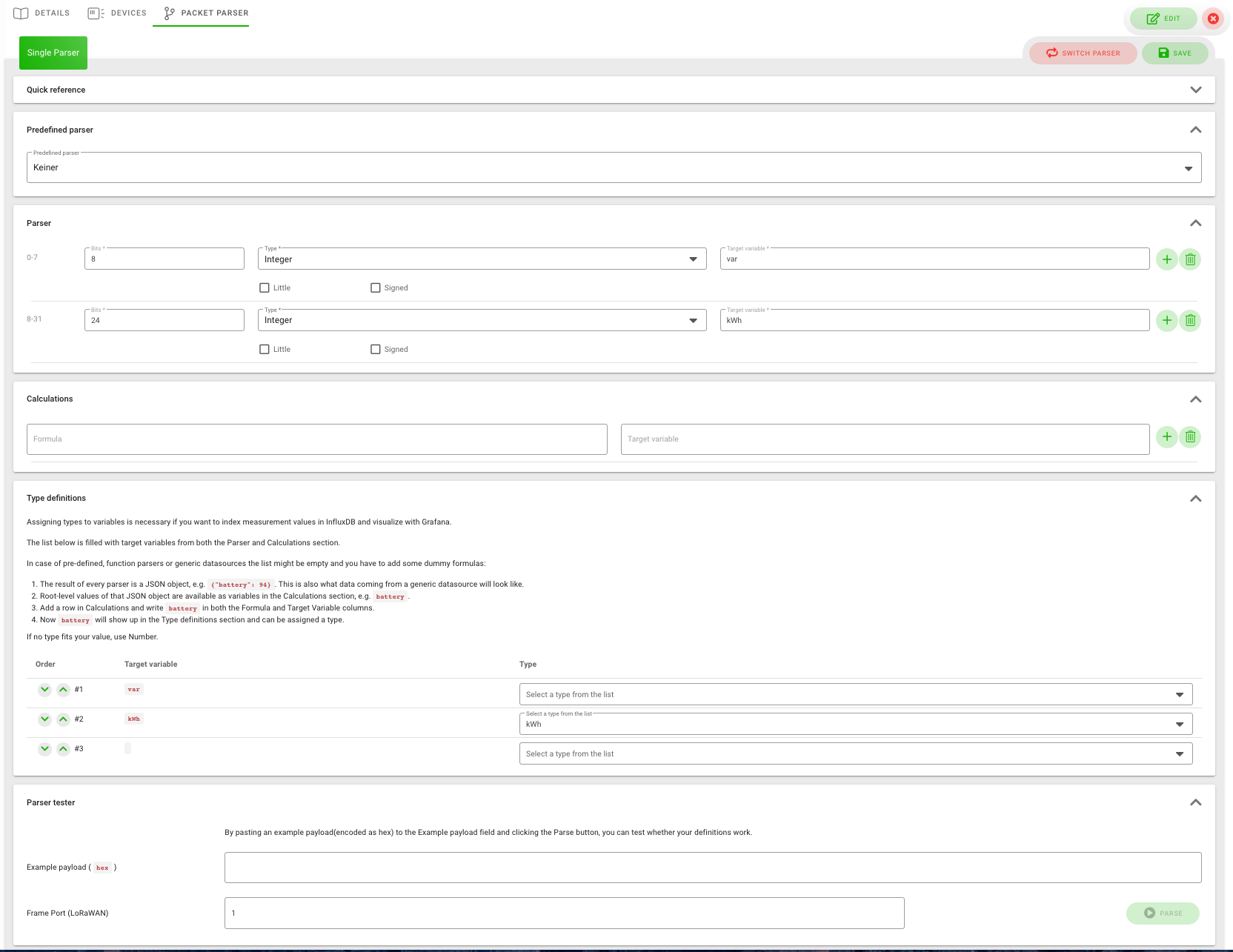
- Click “Single Parser” on the overview page to open the configuration details.
- Optionally use a predefined Single Parser as a starting point.
- In the “Parser” field, define bits and types (Integer, Boolean, String, Float) for target variables (e.g. temperature).
- Then use the shared steps from Common parser fields and test.
Multi Parser
Select this parser to interpret more complex payloads using a switch parser. Different Single Parsers are combined here.
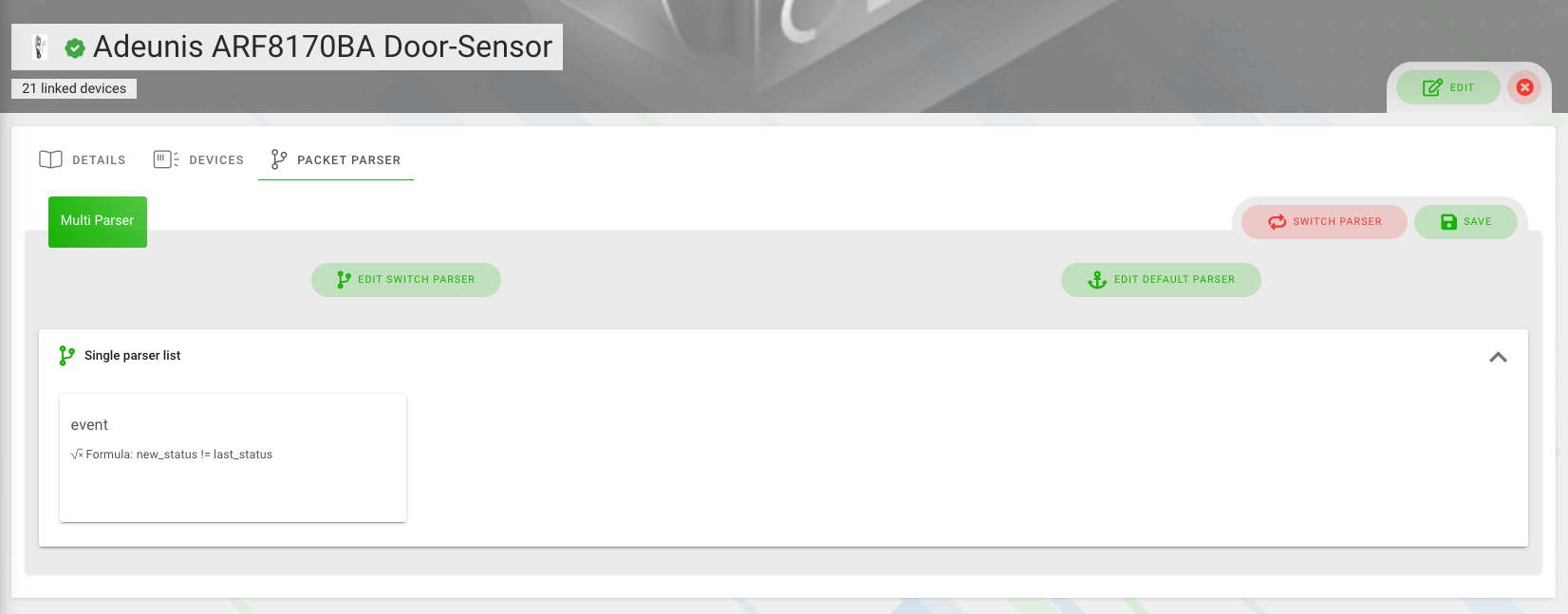
- Click “Edit switch parser” to configure the switch parser. A window opens.
- For each target parser, configure bits and types for target variables in the “Parser” field.
- For each target parser, define transformation formulas in “Target parser calculation”.
- Click “Edit default parser” to configure the fallback parser. It is used when no switch rule matches.
- Configure the default parser like a Single Parser.
- For all parsers (switch targets and default parser), use the shared steps from Common parser fields and test.
Function Parser
Select this parser to define a custom parser in JavaScript or Elixir, or to use an external parser (URL Payload Parser) for payload conversion.
Hardware vendors often provide JavaScript parsers for the LoRaWAN network server “Things Stack”. A description for integrating these parsers is in Best Practices.
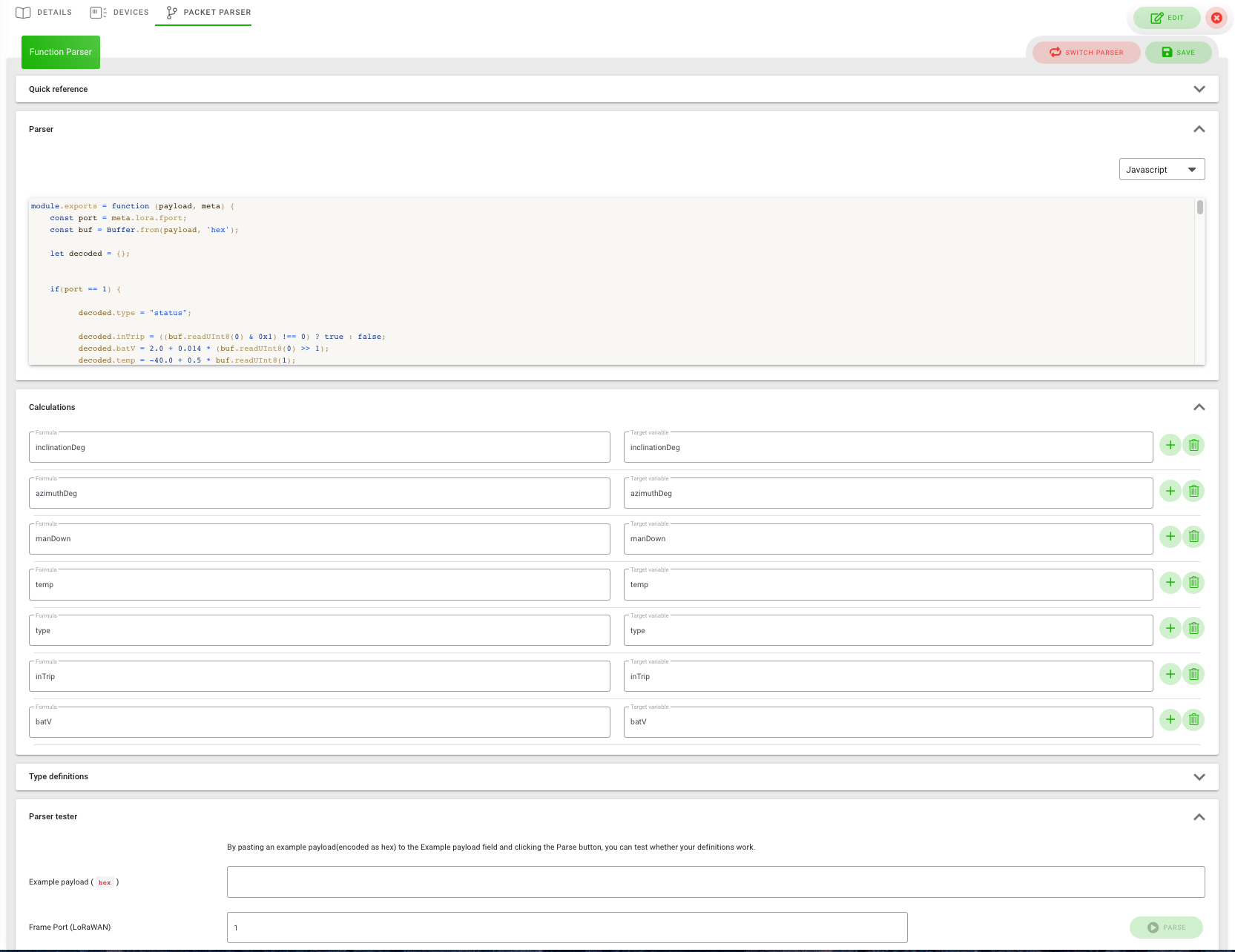
- Use the short guide in the dialog as a starting point and template.
- Enter the parser code in the “Parser” field. Use the selector above the field to switch between Elixir, JavaScript and URL Payload Parser.
- Then use the shared steps from Common parser fields and test.
Requirements for JavaScript Packet Decoder (niotix)
If you use a JavaScript decoder in niotix (e.g. from a manufacturer guide), your decoder should meet the following requirements.
Goal and interface
A decoder converts incoming payloads into structured measurements that are stored as states in niotix.
- Input:
payload,meta - Output: object,
null, or list of objects (Extended Return Structure) - Script language: JavaScript
- Required export:
module.exports = ...
Runtime environment
- Node.js runtime (backend/unify-service):
v22.16.0(as of 18.02.2026) - Execution: in a secured VM (sandbox)
Allowed global helpers in the decoder
The following libraries/objects are directly available in the decoder:
_(Lodash, with security blacklist for selected functions)Buffer(secured implementation)mathjscbor2console.log/info/warn/error/debug(collected internally)
Not available / blocked
For security reasons, the following are not allowed (among others):
require(...), dynamic module loadingprocess,global,globalThiseval,Function(...), constructor-chain building- Network calls such as
fetch(...),XMLHttpRequest - Unsafe buffer methods such as
Buffer.allocUnsafe
Function signature
The decoder must be exported as a CommonJS function:
module.exports = function (payload, meta) {
  // ...
  return {};
};
Input parameters
payload- Hex string, e.g.
"002B406EA710" - or JSON object/array (depending on inbound source)
- Hex string, e.g.
meta(object), typical fields:meta.lora.fport(LoRaWAN frame port to distinguish message types)meta.source_time(source timestamp of the message, if provided by the inbound)meta.device_id(unique ID of the sending device in niotix)meta.device_driver_id(ID of the assigned device driver)
Return format
Standard (single record):
{
  battery: 43,
  temperature: 3.72,
  port: 1,
  raw: "002B406EA710"
}
Extended Return Structure (multiple records per packet):
[
  {
    temperature: 20.1,
    pressure: 777,
    meta: { time: "2026-01-01T12:34:56Z" }
  },
  {
    temperature: 20.3,
    pressure: 778,
    meta: { time: "2026-01-01T12:39:56Z" }
  }
]
Semantics and field rules
meta.time(ISO-8601 string) overrides the packet timestamp.- Internal niotix keys should not be used as measurement keys:
_raw,_health,_parsed. - In Extended Return Structure,
metais reserved for time/routing metadata. - Returning
nullis allowed (no record).
Time and size limits (default values)
- Script timeout:
1000 ms - Parameter depth limit:
120 - Parameter size limit:
1,000,000characters - Buffer limits:
- max allocation per buffer:
1 MB - max total allocation per execution:
10 MB - max number of buffers:
100
- max allocation per buffer:
Note: These limits can be configured per instance.
Recommendations for robust decoders in niotix
- Write decoders deterministically and without side effects.
- Return only required fields (flat, stable output schema).
- Keep data types consistent (e.g. temperature always
Number). - Use Extended Return Structure for batch telegrams.
- Program defensively for invalid payloads.
Minimum test cases before production use
- Valid sample payload -> expected object
- Invalid/too short payload -> robust error path
- Optional: Extended Return Structure with 2+ timestamps
- Boundary values (min/max, sign, endianness)
- Regression test with real manufacturer telegram
What to request from the manufacturer
- Decoder code (
module.exports = function(payload, meta) { ... }) - Short description of decoded fields including unit
- Sample inputs (hex/JSON) and expected output
- Notes on special cases (error codes, firmware versions, optional bytes)
Extended Return Structure
With Extended Return Structure, a Function Parser can return a list of result objects instead of a single object. This allows multiple measurements from one packet with different timestamps to be written to states, e.g. for batch telegrams.
For formal requirements, field rules and a full return example, see Requirements for JavaScript Packet Decoder (niotix).
This also works for MQTT and WebHook inbound for Virtual Devices when already-parsed payloads are passed as a list of objects.
With Extended Return Structure, high system load can rarely lead to inconsistencies in rule execution (rule evaluation with wrong value) because values from the array are processed very quickly. It is still recommended to avoid sensors that send multiple measurements in one packet when the use case is critical and rules are executed based on the delivered data.
URL Payload Parser
Use this parser type when an external service reachable via HTTP should perform the payload conversion. niotix sends an HTTP POST to the URL configured in the device driver for each incoming packet and expects a JSON response with the decoded values.
Flow:
- On each incoming device message, the request is sent to the configured URL.
- Request: HTTP POST with JSON body (
Content-Type: application/json). The body contains raw data and metadata (e.g. device, port, timestamp). - Response: The service must respond within the timeout with a JSON body (see below). The returned values are optionally post-processed via the device driver’s calculation variables and mapped to data points, as with the JavaScript parser.
Request body (example):
The JSON object sent to the URL has the following structure:
{
  "payload": "002B406EA710",
  "meta": {
    "device_id": 12345,
    "device_driver_id": 67,
    "source_time": "2026-02-19T10:00:00.000Z",
    "lora": { "fport": 1 }
  }
}
- payload: The raw payload (e.g. hex string or already an object/array, depending on connector).
- meta: Metadata for the message (Virtual Device, device driver, source time, for LoRaWAN the FPort).
Expected response:
- Success: JSON object with a
resultfield containing the decoded variables (e.g.{ "result": { "temperature": 20.1, "battery": 88 } }). - Error: The service may optionally set
error; niotix treats this as a parser error and aborts processing accordingly.
Prerequisites:
- URL: A valid URL must be configured (e.g.
https://parser.example.com/decode). The URL is validated when saving the device driver. - Reachability: The parser service must be reachable from the niotix backend (unify-service) via HTTP/HTTPS. Local addresses (e.g.
localhost) are only usable if the service runs in the same network as niotix. - Timeout: The response must be received within 5 seconds. Otherwise niotix aborts the request and processing fails.
- Calculation variables: As with the Function Parser (JavaScript), calculation variables can be defined in the device driver; they are applied to the
resultreturned by the external service.
A sample JSON for request and response is available in the parser quick guide in the system.
Device status config
This functionality allows the health status of a Virtual Device to be determined based on available variables.
Origin of the configuration:
- When a device template is used: The device status config is taken from the device template. The configuration can be maintained in the device template and synchronized to linked Virtual Devices. Details are in the Device Templates documentation.
- When no device template is used: The device status config is taken from the device driver. When creating a Virtual Device, this configuration is copied to the “Health” data point and can be adjusted there per device. The device driver configuration is a general blueprint for all use cases without a template.
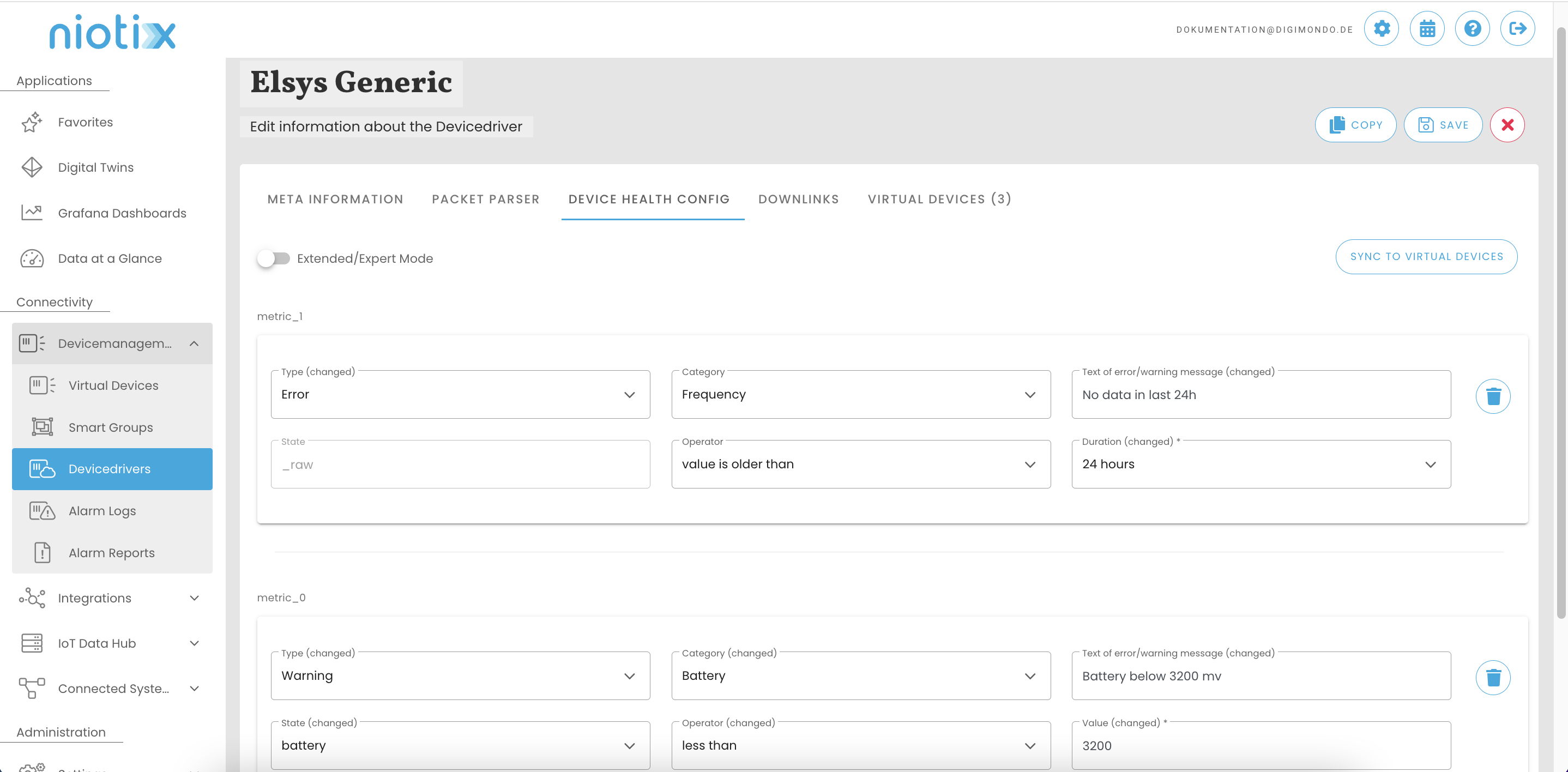
Advanced/Expert mode: The advanced mode can be enabled here, in which the configuration can be stored as JavaScript to represent e.g. nested conditions.
Apply to Virtual Devices: This function rolls out the configuration to all linked Virtual Devices. This option is only relevant when no device template is used.
When rolling out, device-specific adjustments to the device status config in the affected Virtual Devices are overwritten.
Type: Here you can define whether the entry is an error or a warning. This distinction can later be used in evaluation, e.g. to send alarm reports only for devices with an error, not a warning.
Category: The following categories can be selected for differentiation in evaluation:
- Battery: Refers to battery errors of a device.
- Connectivity: Refers to expected transmission behavior of a device (e.g. at least one packet every 24 hours).
- Device: Refers to device-specific errors provided by a sensor, e.g. “System error” or “Tamper alarm”.
Message text: Short, user-understandable text describing the entry. This text is shown in the UI on Virtual Devices or in the alarm log.
Data point: Specify the variable (or the resulting data point in the Virtual Device) used to evaluate the condition.
Operator: Operator for the condition.
Value: Comparison value for the condition.
Configure standard downlinks
In the “Downlinks” tab you can configure standard downlinks for device drivers. This allows simple downlink messages to be sent to devices from niotix, e.g. for reset or switch on/off. Currently only Firefly devices are supported. Downlinks can only be used for device drivers that are not digimondo-certified. Contact your DIGIMONDO representative if you need a downlink for a certified device driver.
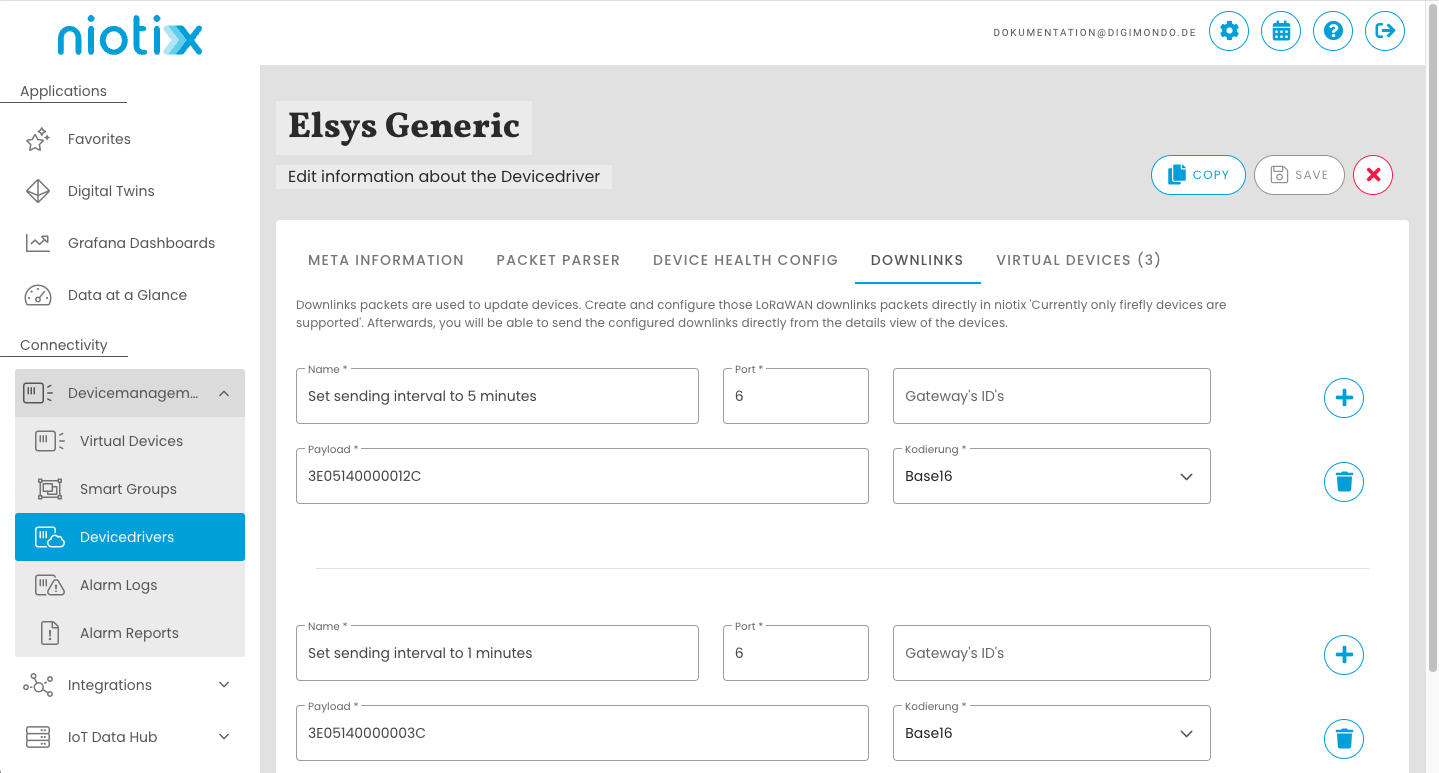
Configure a downlink in the “Configuration” field by clicking the plus button and entering:
Name: Enter the name of the downlink.
Port: Enter the port.
Payload: Enter the payload to be sent.
Encoding: Choose base16, base64 or utf8.
Gateway IDs: Enter the gateway ID.
Fields marked with an asterisk are mandatory.
Function currently only available for devices with connector to “Firefly”.
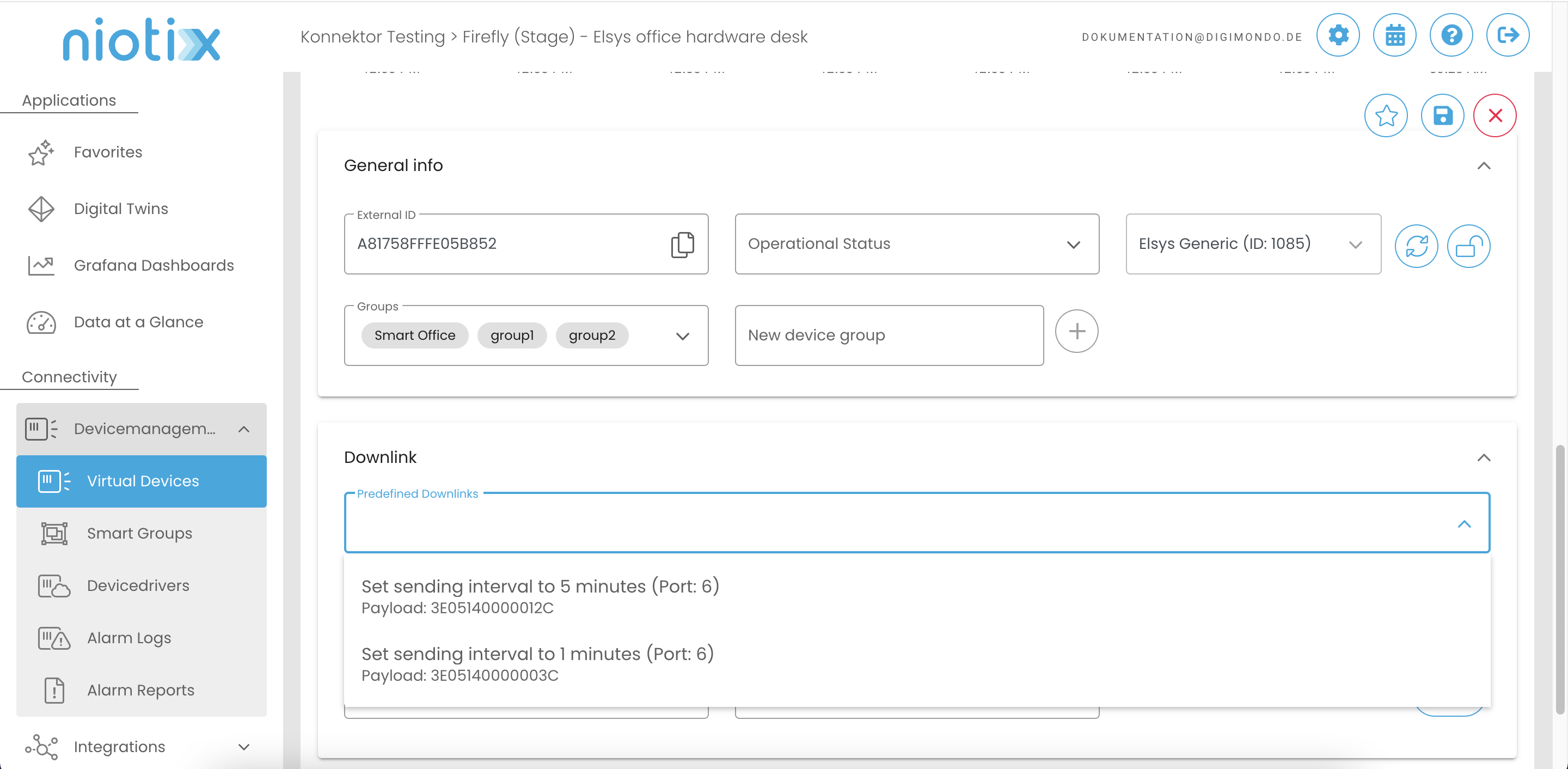
The defined downlinks can be selected on each Virtual Device that uses this device driver under tab “Device Information” –> “Downlink”.
Delete device driver
On the overview page, each device driver has two icons for editing and deleting. The device driver can be deleted via the “Trash” icon. A confirmation message appears on successful deletion.
What happens when you delete:
- The device driver is permanently removed. Parser configuration, device status config and standard downlinks of this type are no longer available.
- Virtual Devices that used this device driver can no longer process new data via the previous parser logic. Before deleting, affected Virtual Devices should either be assigned to another device driver or the assignment should be clarified.
A device driver can only be deleted when no Virtual Devices use it anymore. If Virtual Devices are still assigned, the deletion is rejected with an error message. First change the assignment of Virtual Devices to another device driver or delete the affected Virtual Devices.
Related pages
- Virtual Devices – Create and configure Virtual Devices including the “Health” data point
- Device Templates – Central configuration including device status config for many Virtual Devices