This section describes the general structure of the application, such as the menu, sign-out, and customization of the user interface.
Overview
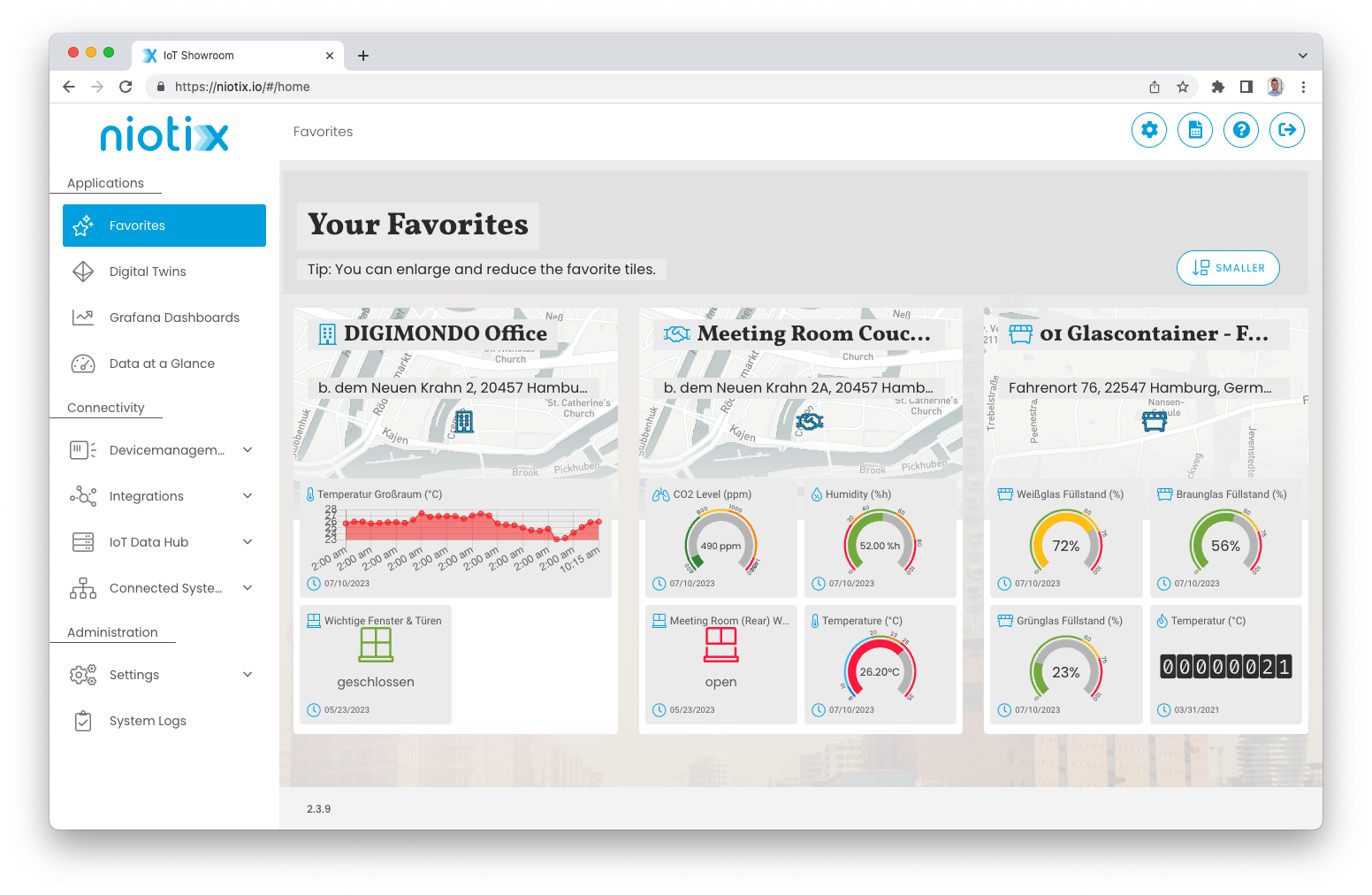
After logging in, you will see the home page of niotix. On the left side, you will see the foldable main menu with access to e.g. your account settings, digital twins, special modules, etc. (1). With a click on the gear wheel icon on the upper right, you can customize your view (e.g. switch languages or change to dark mode). Next to it you will find a link to the corresponding section in the manual to quickly get help if needed (2). In the middle, you see your dashboard with pinned digital twins to easily keep overview of your infrastructure (3).
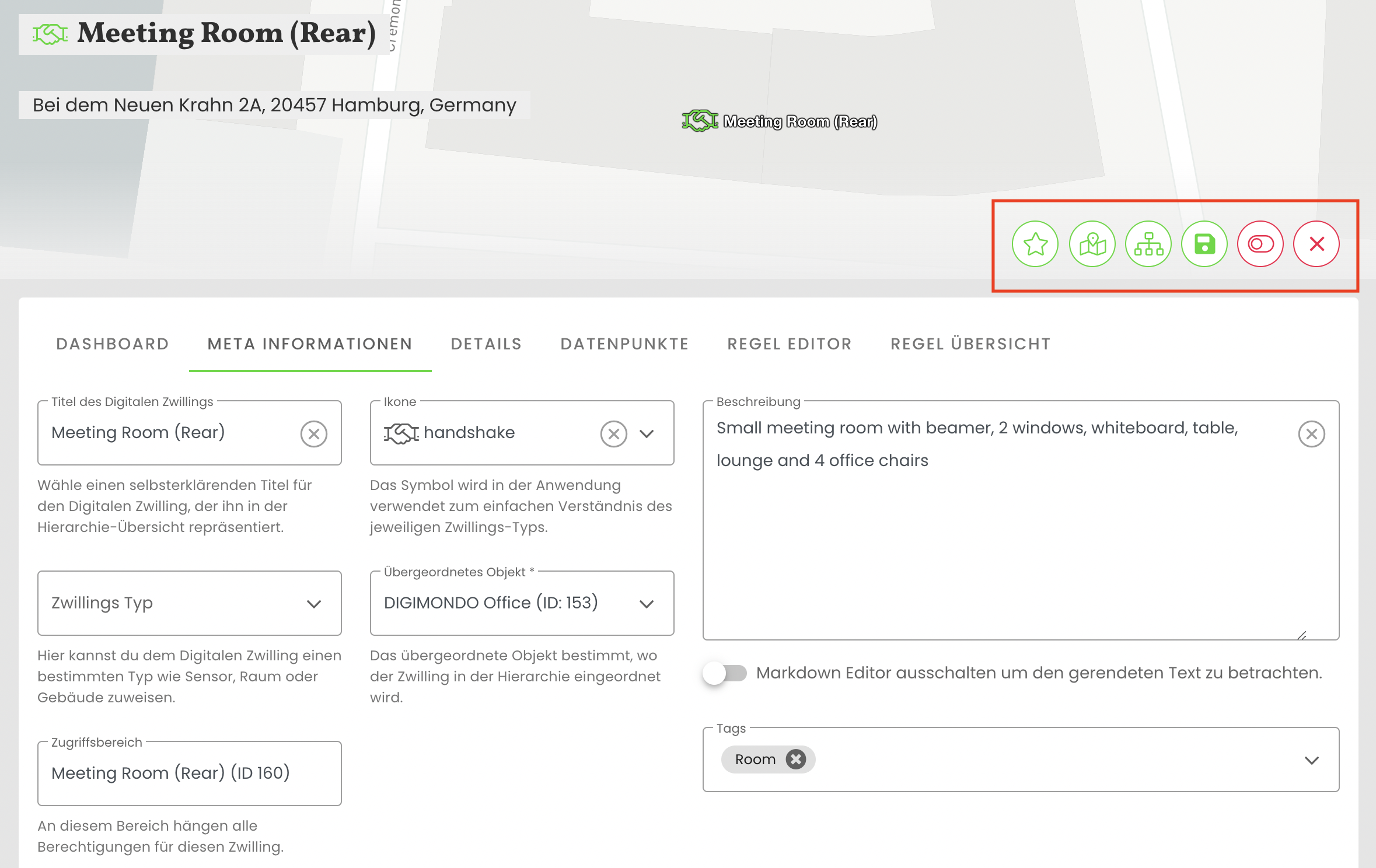
niotix has a user-friendly way of working with the system which is consistent among all pages. On each page, the major functionalities to create, save or delete items (e.g. digital twins or users) are always placed on the top right corner of the canvas.
Main menu
With the main menu on the left, you can navigate to all features of niotix:
Applications
- Favorites: The home-screen you see after logging in with all your favorites
- Digital Twin: All features to manage your digital twins
- Modules: individual, small applications that realize individual use cases based on the digital twin and IoT data
Connectivity
- Devicemanagement: Device management and monitoring from various IoT data sources
- Integrations: Manage to get data in to niotix and out to other systems
- IoT Data Hub: All functions from the niota 1.0 system for managing applications and devices
- Connected Systems: Third-party systems that are not part of the niotix core system but can interact with niotix via internal interfaces
Administration
- Settings: Customize your account and manage your user as well as user roles
- Background Jobs: CSV exports for downloading and viewing background job statuses
- System Logs: Access the system logs e.g. for debugging
Logout
On the top right, you can find the name of the logged-in user and the button to log out from niotix. We recommend that you always log off from your account to ensure security, especially when you are not working on your private computer.
Help Button
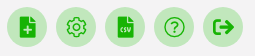
Use the question mark button in the top-right menu to access a new menu where you can enter feedback and reports directly. You can send us positive and negative feedback and suggestions for innovations in the system directly via a contact form and add attachments. You will also find links to the manual for the part of the menu you are currently in within the software, and to the Release notes in the manual about the latest updates.
Export Schedules
Create periodic exports of the latest values of data points as a CSV file to transfer the data to external systems such as billing systems.
Customization
With the gear wheel symbol on the top right, you can customize how niotix looks on your browser to tailor it to your needs:
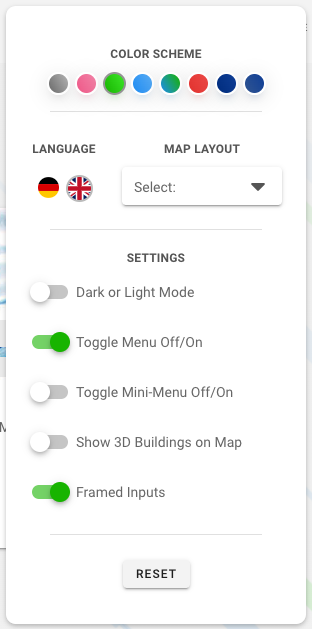
- Color Schema: Choose between a multiplicity of different accent colors.
- Language: Switch between different languages; e.g. English and German.
- Map Layout: Choose whether you prefer a map-view, satellite view, both views or niotix specific view.
- Dark or Light Mode: Switch to enhance readability at daylight or night.
- Toogle Menu Off/On: Decide whether the main menu on the left stays visible or hidden.
- Toggle Mini-Menu Off/On: Decide whether the main menu on the left is wide with texts or small just with icons
- Show 3D Buildings on Map: Activate the 3D view of buildings on your maps.
- Coloured Inputs: Highlight input-fields for a better readability.
- Framed Inputs: Highlight the frame of input-fields for a better readability.
- Reset: Reset all settings to the default-value.
All settings done in this menu are only applied to your local browser. If you switch to a different browser or computer, the settings will be reset.